To make your first test call to Voco, add your own mobile as a test number, then ring your Voco number directly and talk to your AI receptionist as a customer would. You do not need to forward your business number first. Testing takes about 5 minutes and lets you change anything you do not like before a real customer hears it.
How do I stop test calls using my allowance?
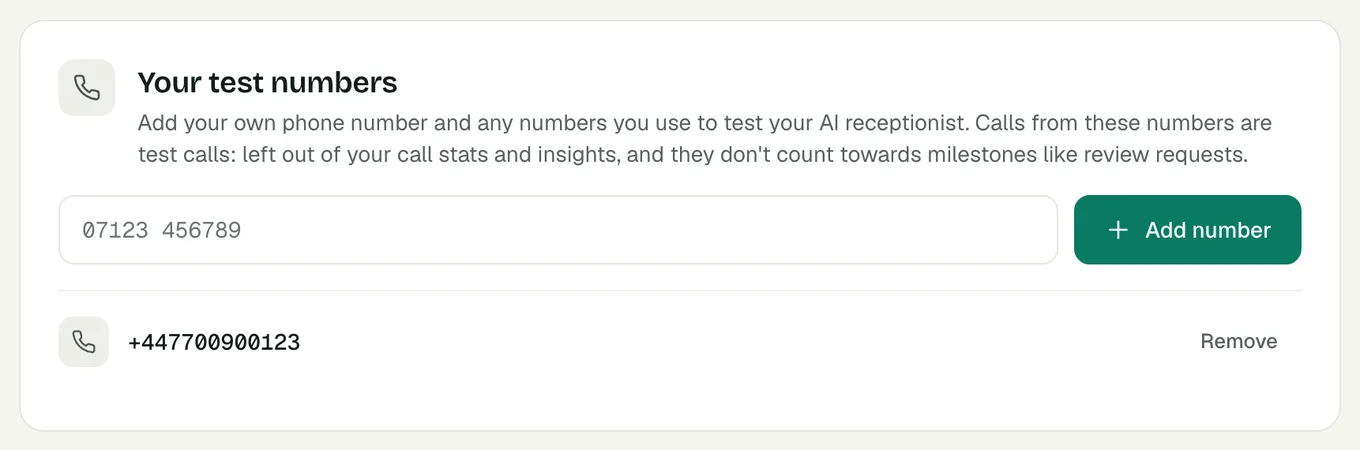
Add your own number as a test number before you ring. In your Voco dashboard, go to Settings, then Test numbers, and add your mobile and any other phone you will test from. Calls from these numbers are marked "Test call" in your call list, are left out of your allowance and billing, and do not count towards your call statistics.
How do I ring my Voco receptionist?
Ring your Voco number from your mobile. Your Voco number is at the top of your dashboard home page, with a copy button, and in the email that said your receptionist was live. Voco answers straight away with your greeting, which by default thanks the caller for ringing your business by name and asks how it can help.
Talk to it the way a customer would. Good things to try on a first call:
- Ask one of the questions customers ask you most, such as your prices, your area or your opening hours.
- Ask to book an appointment, if you take bookings through Voco.
- Describe an urgent problem, to hear how Voco handles an emergency for your type of business.
- Ask to speak to a person, to hear what happens with your transfer setting.
Where do I see what happened on the call?
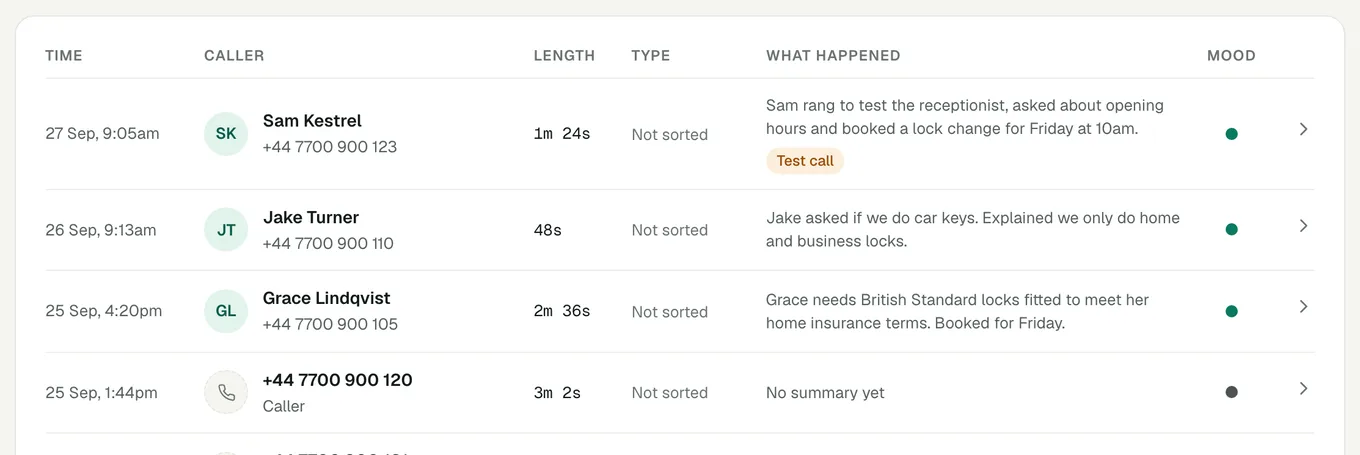
Every call appears in Calls in your Voco dashboard once it ends, with the caller, the reason they rang, a summary and whether they need a call back. If email notifications are on, you also get an email titled "New call for" and your business name, with a short summary and a link to the full call. Turn email and text alerts on or off under Settings, then Notifications.
How do I change what Voco says?
Each part of a call is set on its own page in the dashboard. Voco updates your receptionist when you save, so ring again to hear the change.
| To change | Go to |
|---|---|
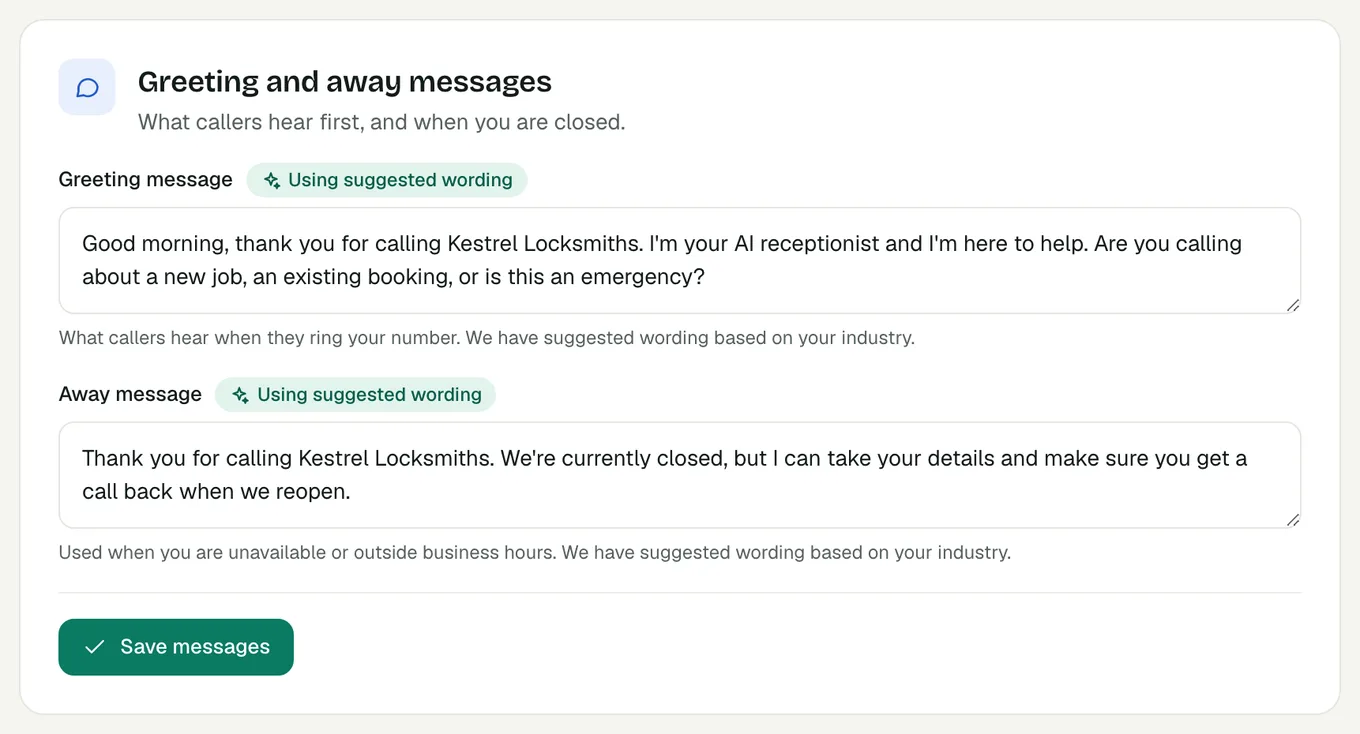
| The greeting | Settings, then Receptionist, then Greeting message in Greeting and away messages. Press Save messages. |
| What it knows | Settings, then Receptionist, then Your receptionist's knowledge: add your website, upload a document, or answer common questions under "Anything else it should know?". |
| Opening hours | Settings, then My business, then Business hours. Press Save changes. |
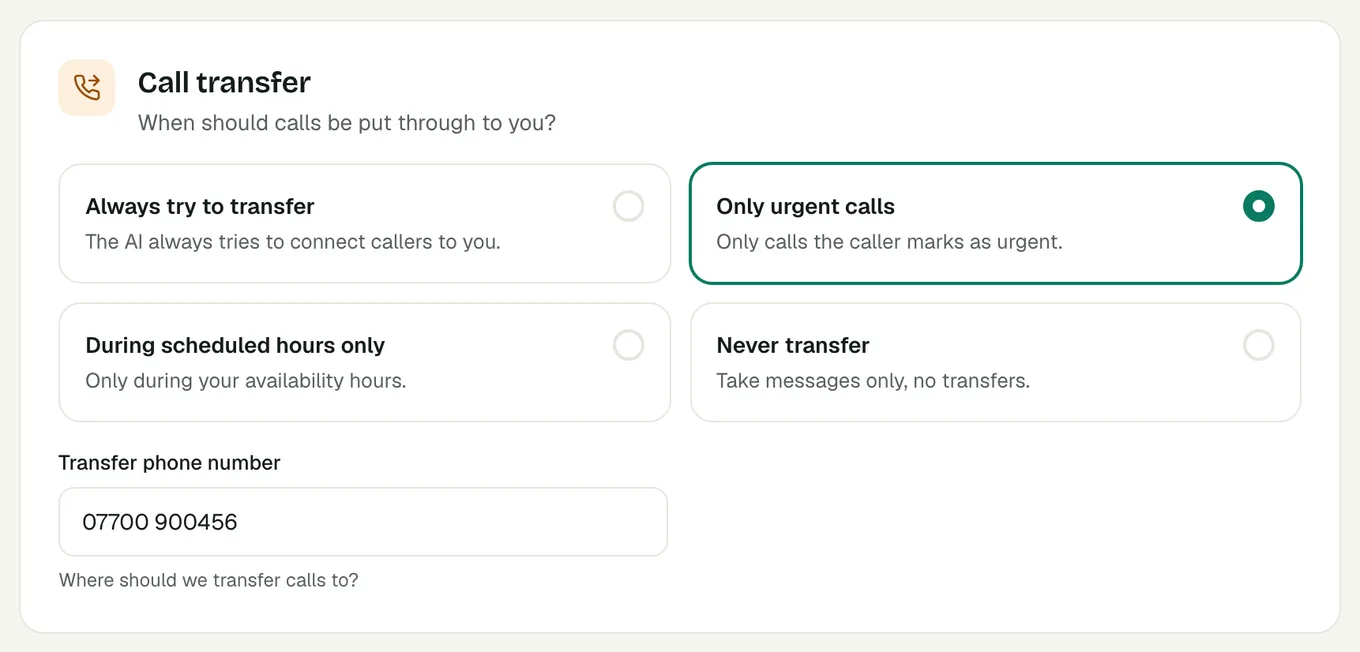
| When it puts calls through to you | Settings, then Call handling, then Call transfer: always, only urgent calls, during scheduled hours only, or never. Add the number to ring in Transfer phone number. |
If an update does not reach your receptionist, the Receptionist settings page says "Your receptionist is still answering with older settings". Save again, and if the message stays, email the Voco team.
What should I do after the test call?
When Voco sounds right, tick "I have made my test call" on the checklist on your dashboard home page, then forward your business calls to Voco so it answers the calls you miss. If you also want Voco answering questions on your website, add Voco chat to your website next.