To set up Voco in your first hour, choose a voice so Voco can assign your Voco number, then work through the go-live checklist on your dashboard home page. The checklist covers your business details, your opening hours, how Voco handles your calls and your greeting. Then add your services and service area, make a test call and forward your business number. Setting up Voco costs nothing: only calls use your allowance or credit.
How do I get my Voco number?
Voco assigns your Voco number as soon as you choose a voice for your receptionist. If you have not chosen one yet, Settings, then Call forwarding says "Choose a voice to get your phone number". Press Choose a voice, play a few voices, press Select on the one you like, then Confirm.
While the number is being set up, the page says "We're setting up your phone number", which usually takes less than a minute and updates by itself. If it says "Your phone number hasn't been set up yet", press Set up now. If setup fails, press Try again or email the Voco team.
Once it is ready, your Voco number sits at the top of your dashboard home page, after "Your receptionist is answering on", with a copy button. This is the number your business calls are forwarded to. Customers never need to know it.

What is on the Voco go-live checklist?
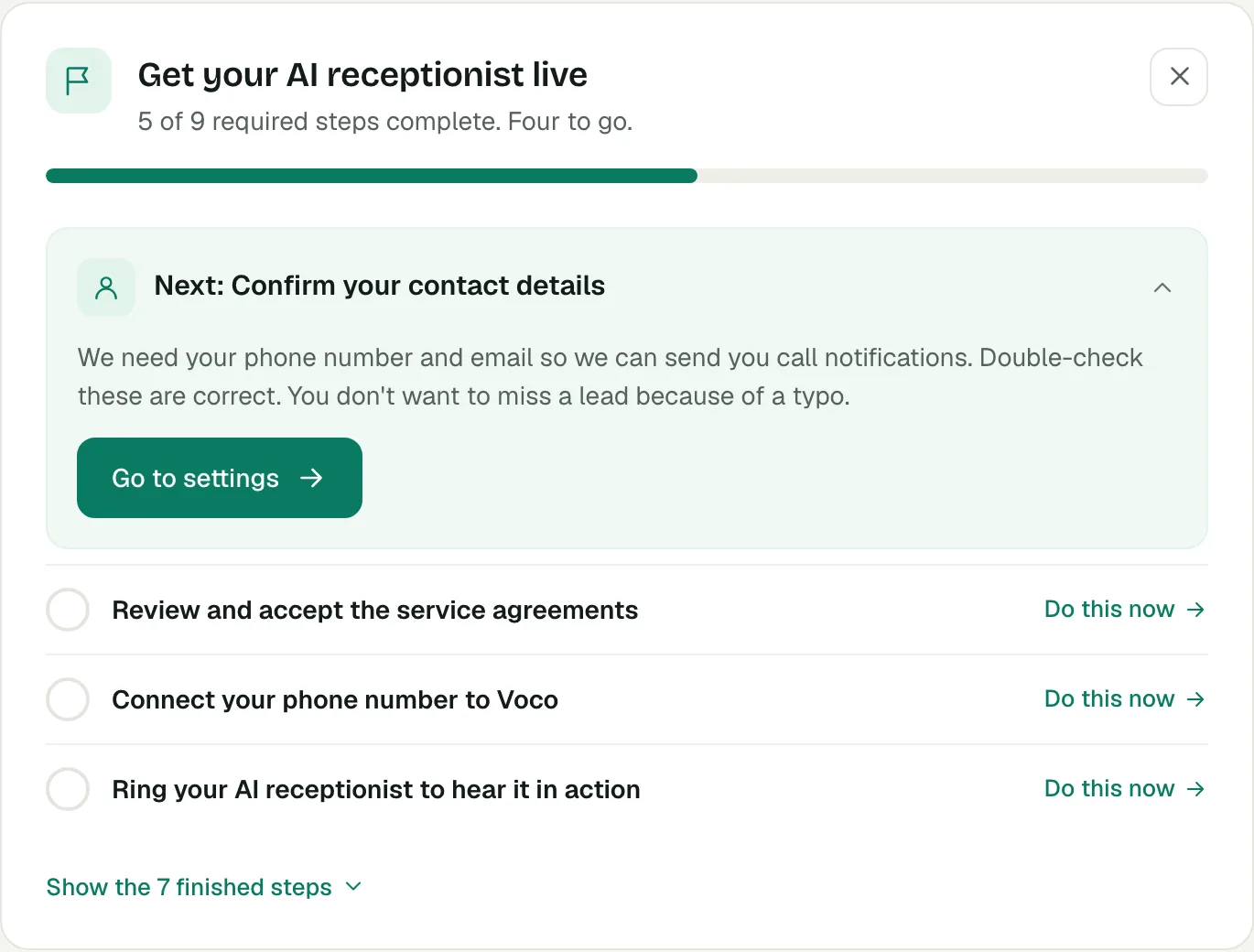
The go-live checklist is the card headed Get your AI receptionist live on your dashboard home page. It shows how many required steps are complete, puts "Next:" in front of the step to do now, and gives each step a Go to settings button that opens the right page. The required steps are:
- Add your business address and check your business name, which is how you are introduced on the phone.
- Confirm your contact details, so call alerts reach you.
- Set when you're open for business.
- Tell us how to handle your calls: when Voco answers.
- Write your receptionist's greeting.
- Choose how you get notified about calls.
- Review and accept the service agreements.
- Connect your phone number to Voco, by forwarding your calls.
- Ring your AI receptionist to hear it in action.
Two recommended steps follow, marked Recommended: Help your receptionist learn about your business and Tell us where you work. A business that handles emergencies also sees Set up emergency call handling. Voco ticks most steps off when you save the setting. You tick the forwarding and test call steps yourself, with I have set up call forwarding and I have made my test call.
To put the checklist away, press Hide checklist. Show checklist brings it back.
Which business details does my receptionist use?
Your receptionist introduces your business by its trading name, or by its business name if you have no trading name. Both are on Settings, then My business, under Business information, with your Phone number, Email and Website. Everything on My business saves together when you press Save changes at the foot of the page.
- Check Business name, and fill in Trading name if customers know you by another name.
- Fill in your Address. Voco uses your town as where you are based.
- Check the Primary contact. This person gets every alert about calls, bookings and your account, and does not need a login.
- Under Company information, check your Industry. If you change it, Voco asks "Update your receptionist to match?" and offers the template for your trade. Press Update receptionist to switch, or Keep current setup. Messages you have customised are not changed.
- Press Save changes.
How do I tell Voco what I do and where?
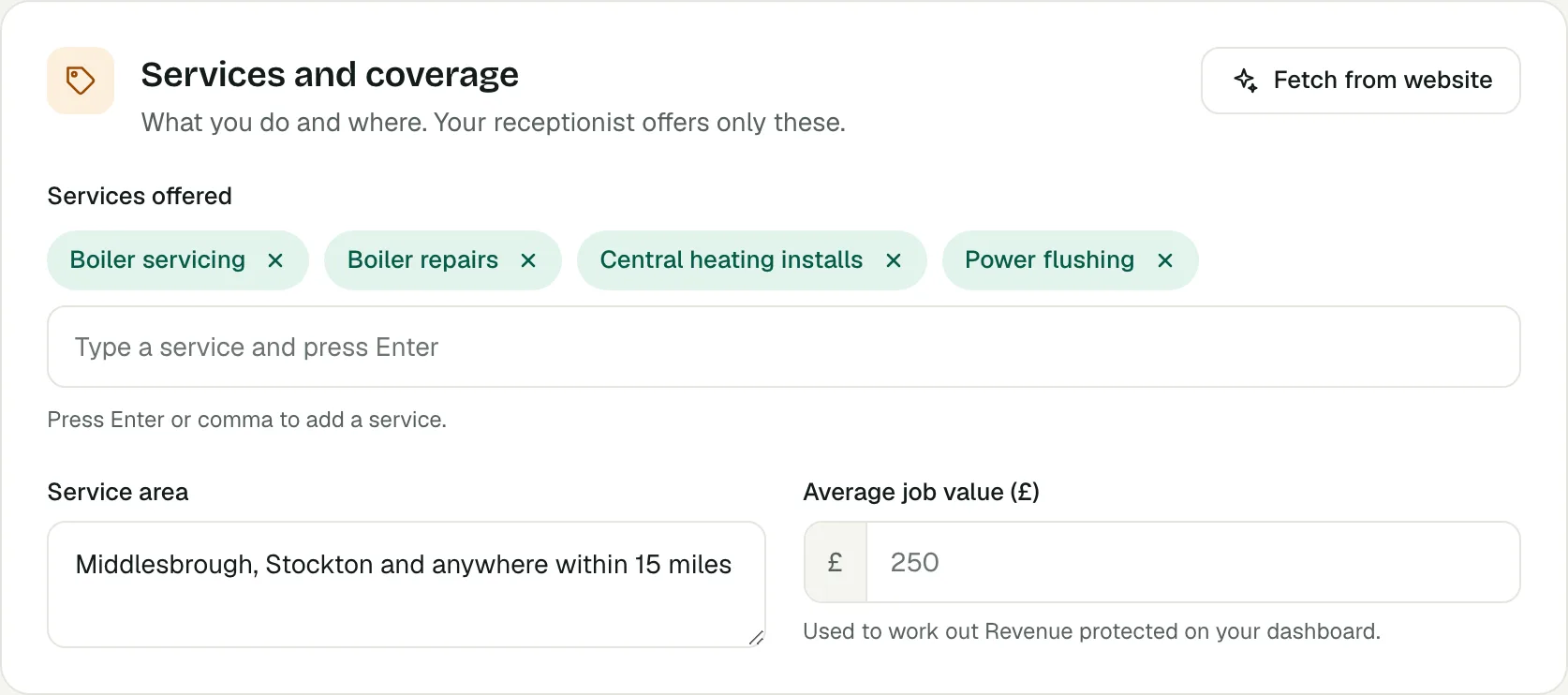
Voco's receptionist offers only the services listed under Services and coverage on My business, so this list matters. Type each service into Services offered and press Enter or a comma after each one. Describe where you work in Service area, for example "Middlesbrough, Stockton and anywhere within 15 miles".
If you have saved a website, Fetch from website reads your site and adds the services it finds. It fills in Service area only when that box is empty. What it finds is not kept until you press Save changes, so check the list, then save. For more on your website, documents and answers, see how to teach Voco about your business.
The optional Average job value (£) box works out "Revenue protected" on your dashboard. Callers never hear it.
How do I set my opening hours and bank holidays?
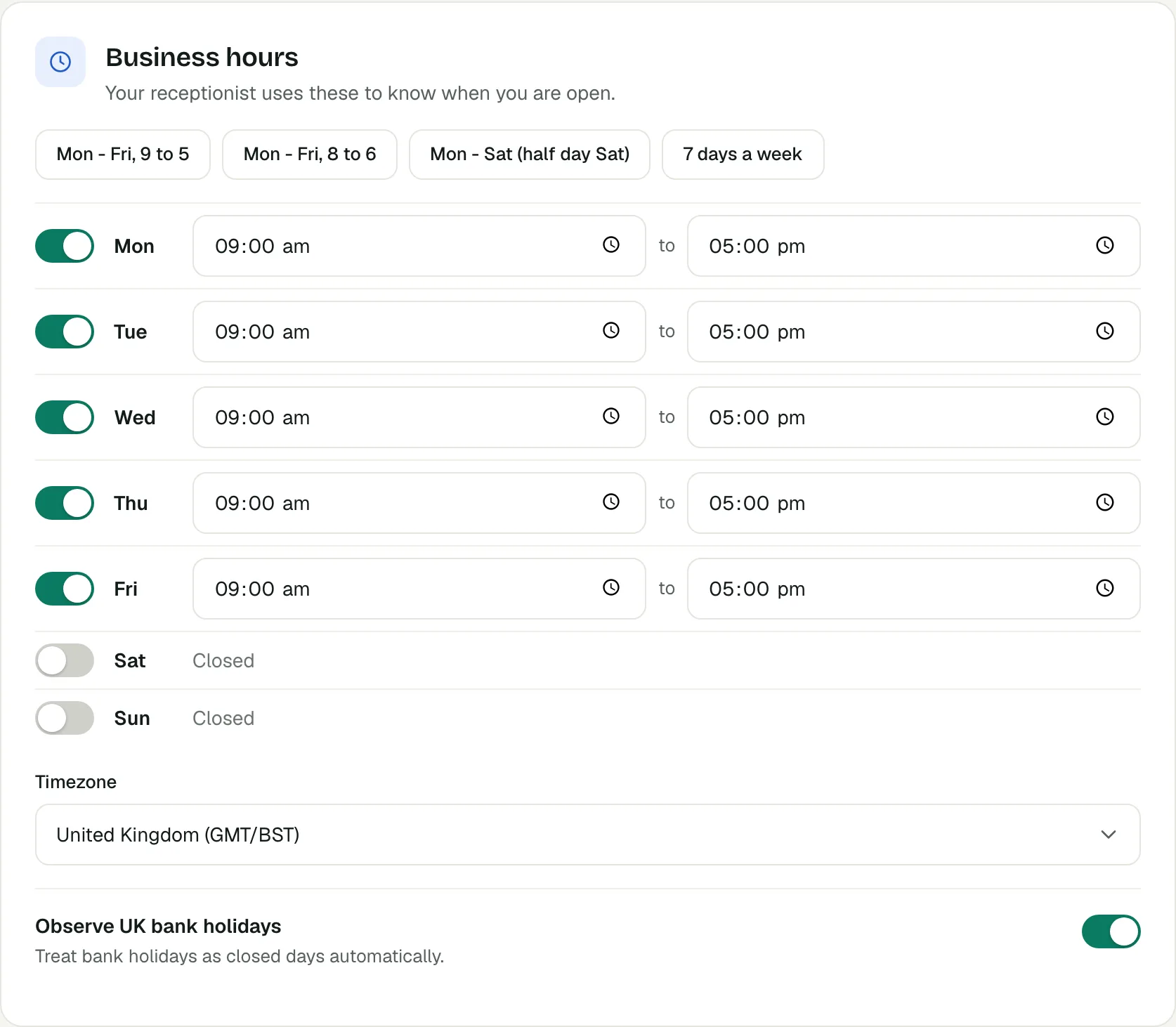
Your opening hours tell Voco's receptionist when you are open, so it knows when to say you are closed and take a message instead. They are under Business hours on My business.
- Press a preset to fill the week: Mon - Fri, 9 to 5, Mon - Fri, 8 to 6, Mon - Sat (half day Sat) or 7 days a week. A preset only fills the form.
- Switch any day off to mark it closed, and change the opening and closing times where yours differ.
- Check Timezone: United Kingdom (GMT/BST) or Ireland (GMT/IST).
- Leave Observe UK bank holidays on to treat bank holidays as closed days automatically. It is on unless you switch it off.
- Press Save changes.
Voco takes bank holiday dates from the GOV.UK list for England and Wales. If you are in Scotland or Northern Ireland, or you close on other days, add them under Settings, then Receptionist, then Planned closures. The receptionist mentions a planned closure to callers in the 7 days before it.
Business hours are separate from the times Voco may offer for bookings, which are set on the Availability page. See Voco bookings for how appointments work.
When should Voco answer my calls?
Go to Settings, then Call handling, and pick one option under How should Voco handle your calls?:
- Answer all calls: every call goes straight to your receptionist and your phone does not ring.
- When you're busy: your phone rings first, and Voco answers if you do not pick up.
- Outside business hours only: you answer during the day, and Voco covers evenings, weekends and holidays.
- When you're busy + outside hours: your phone rings during business hours, and outside them calls go straight to Voco.
Press Save changes even if the option you want already looks selected. The checklist step stays open until you save, and your choice changes the forwarding codes Voco shows you. For more on what Voco does on a call, see Voco call handling.
What do my callers hear once this is set up?
Callers hear your greeting with your business name, and the receptionist answers from your services, your area and your hours. Ring outside your opening hours and it says you are closed and offers to take a message, which is the default After-hours mode, "Take messages only". To change the opening words, see how to set your greeting and away message.
What should I do next?
Add your mobile as a test number and make your first test call. When it sounds right, forward your business calls to Voco, so it answers the calls you miss. See Voco pricing for what calls cost on each plan.