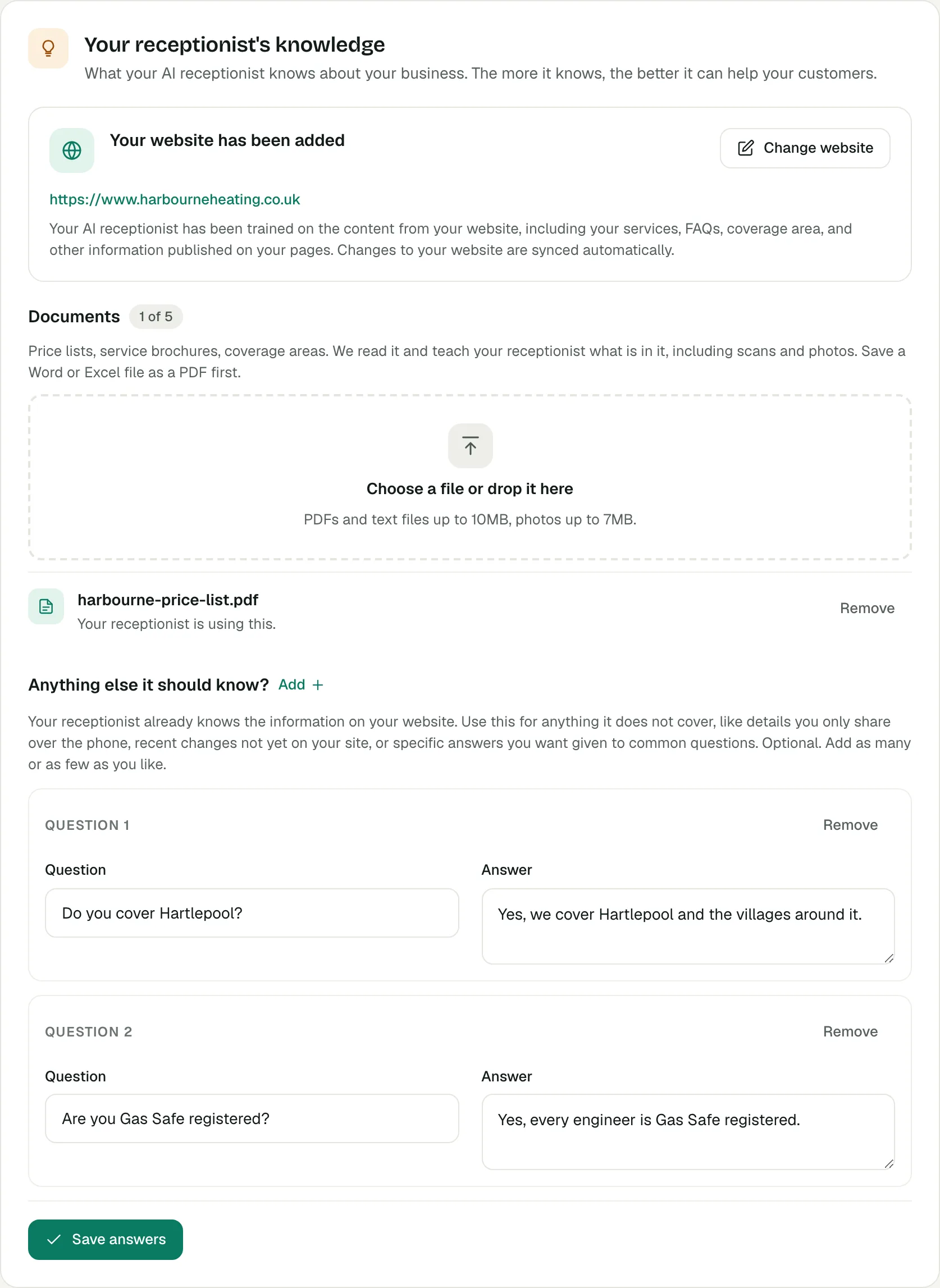
To teach Voco about your business, go to Settings, then Receptionist, and use Your receptionist's knowledge: add your website, upload up to 5 documents, and add up to 10 extra answers. Voco's receptionist answers callers from what you give it there, plus your services, hours and prices. Adding knowledge is free, and each change reaches your receptionist when you save.
How does Voco learn from my website?
Your website is the quickest way to teach Voco, because it usually already covers your services, areas, prices and common questions. If you added it when you signed up, the knowledge card says "Your website has been added".
- Go to Settings, then Receptionist, and scroll to Your receptionist's knowledge, or press Knowledge at the top of the page.
- Under Add your website, type your address, such as www.yourbusiness.co.uk.
- Press Save.
To use a different address later, press Change website. Voco reads your website when you save it. After you change prices, hours or services on your website, press Change website and then Save without changing the address, so Voco takes a fresh copy and the receptionist answers from the new version.
Your website is also on Settings, then My business. Changing it there also reads your services from the new site, and Fetch from website on that page adds them to your list of services. See how to set up Voco in your first hour.
Which documents can I upload to Voco?
Voco takes up to 5 documents, such as price lists, service brochures and maps of the areas you cover. Each can be a PDF or a text file up to 10MB, or a photo up to 7MB. Voco reads scans and photos too. Save a Word or Excel file as a PDF first.
- Under Documents, which shows how many of the 5 you have used, press Choose a file or drop it here.
- Wait while it says "Reading your document, this can take a minute". The page updates by itself.
- When it says "Your receptionist is using this.", you are done.
Voco rewrites each document into plain text for the receptionist and checks it against your settings. If something does not match, such as a price in the document that differs from your price list, the document says "Needs a quick check before we use it." Press Review to see "Your settings say" one thing and "This document says" another. Then press Use this document, or Discard it. Your settings always win on a live call, so update them too if the document is the current one.
To stop using a document, press Remove beside it. Uploading and reading documents is free.
How do I add answers to common questions?
Use Anything else it should know? for answers your website and documents do not cover: details you only give over the phone, recent changes, or the exact answer you want given to a common question.
- Press Add beside Anything else it should know?.
- Type the question as a customer would ask it under Question, such as "Do you cover Hartlepool?", and your reply under Answer.
- Repeat for up to 10 questions.
- Press Save answers.
An answer with no question is not kept. Keep answers short and complete, because the receptionist says them aloud and every answer uses room in its instructions.
What is the room-left meter?
The room-left meter is the bar headed Room for your receptionist's instructions at the top of the Receptionist page. Everything you set on that page is written into your receptionist's instructions, which have a length limit. The meter shows how many characters are used out of the limit. Your price list, answers and Additional instructions use the most room.
When the meter is nearly full, it says so. If a change would take the instructions past the limit, Voco does not save it, and shows a message starting "Not saved" beside the button you pressed, with how far over it would be. A change that makes things shorter always saves, which is how you get back under. Shorten your price list or answers, then save again.
Your website and documents are kept apart from these instructions, so adding them does not fill the meter.

Should Voco share my prices?
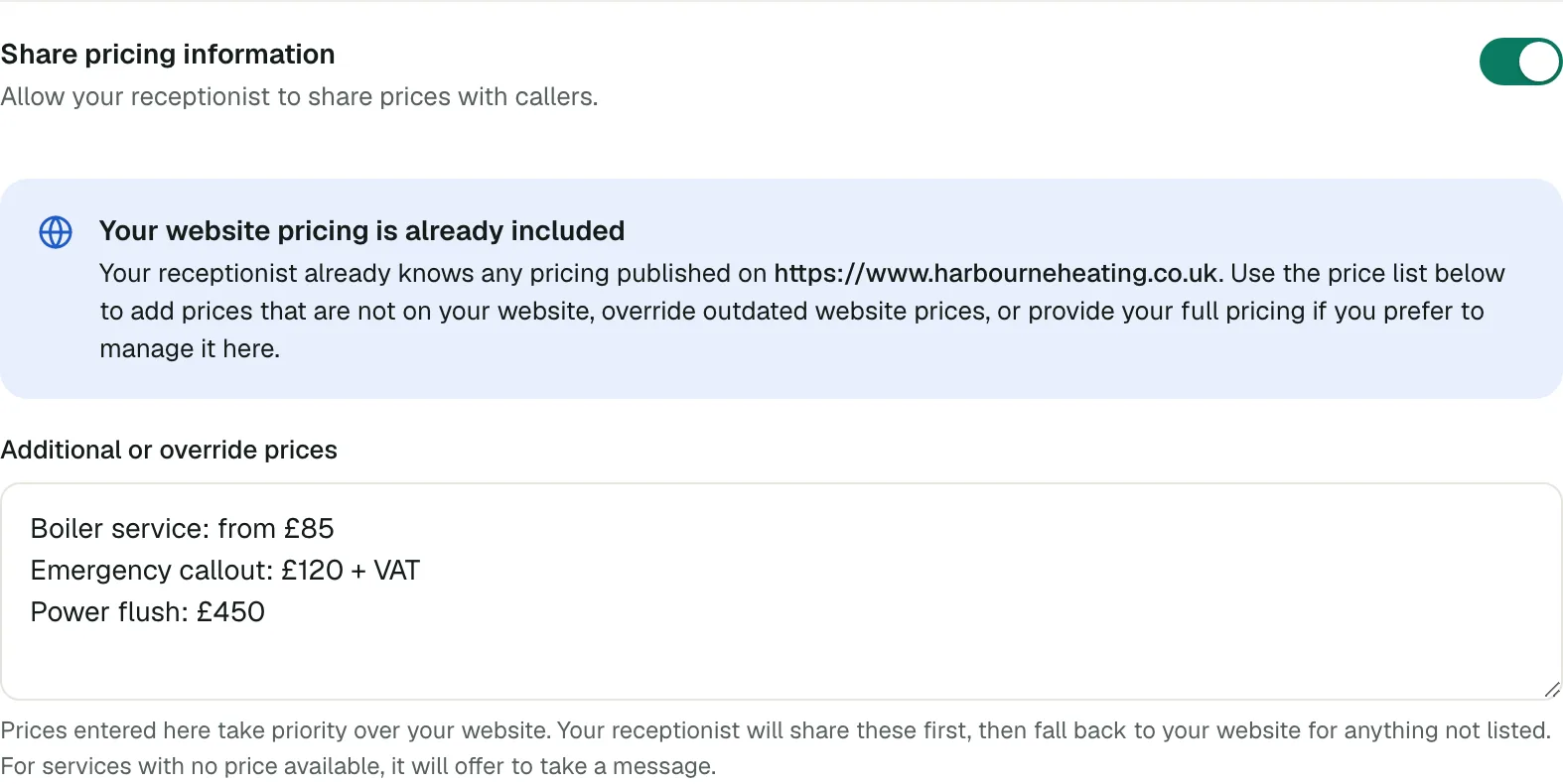
Voco's receptionist only quotes prices when Share pricing information is on, and it is off unless you switch it on. While it is off, the receptionist never gives a price, quote or estimate, even one on your website, and offers to take a message instead.
- Under Call behaviour, switch on Share pricing information.
- If you have added your website, a note says "Your website pricing is already included". Use Additional or override prices for prices that are missing or out of date there. Prices here take priority over your website.
- If you have no website, type your prices into Price list. The receptionist only shares prices listed there.
- Press Save call behaviour.
Write prices in any format, up to 5,000 characters, such as "Boiler service: from £80". For anything without a price, the receptionist offers to take a message. See how Voco learns your business for more.
What does "We go to the customer" do?
Switch on We go to the customer under Call behaviour if you travel to your customers, as a plumber, locksmith or mobile mechanic does. Voco's receptionist then asks for the postcode before offering times, and takes the full address before it books, so every visit has somewhere to go. Press Save call behaviour.
It starts switched on for the general trades, locksmith and home services templates, and off for the rest. Bookings depend on your diary: see Voco bookings and connecting Google Calendar.
What do my callers hear?
A caller who asks "Do you cover Hartlepool?" hears your answer from "Anything else it should know?", or from your website. With pricing on, a caller asking about a boiler service hears your listed price. With pricing off, the receptionist offers to take their details so you can quote. To check what it says, make a test call and ask your customers' most common questions. Voco web chat answers from the same knowledge, so everything you add here helps on your website too.