To set up two-way texts in Voco, open Settings, then Texts in your Voco dashboard, take a new 07 number, choose when Voco should answer texts, and press Turn texting on. Your number is usually ready in about a minute. From then on, every text Voco sends your customers comes from that number, customers can text it and reply, and Voco's AI receptionist answers them the way you chose. The whole setup takes about 10 minutes, including telling your customers.
What does two-way texting do for a small business?
Two-way texting lets customers reply to your business's texts and text you first, on a UK mobile number that belongs to your business rather than to anyone's personal phone. Without it, booking confirmations and reminders usually come from a sender name, such as your business name in place of a number, and a sender name cannot receive replies. A customer who wants to move a visit then has to ring, and if nobody answers, the booking is lost.
With Voco, the texts land in one Texts inbox that your whole team can see, beside your calls, web chats and emails. Voco's receptionist answers the simple ones from your prices, areas and opening hours, and anything you keep for yourself comes straight to you. See how Voco handles texts for an overview.
What do I need before I turn texting on?
You need website chat set up in Voco, because Voco answers texts with the same receptionist as your web chat. Until web chat is set up, Settings, then Texts says Web chat needs setting up first, and every text comes to you instead. See how to add Voco chat to your website.
Check your My business page too. Voco's receptionist answers texts from your services, prices, service areas and opening hours, so a price missing there is a price it will not quote, and the text comes to you instead. See how to teach Voco about your business.
How do I get my Voco text number?
- In your Voco dashboard, go to Settings, then Texts, under Channels.
- Under Which number should your texts come from?, choose A new mobile number. Voco shows a few free 07 numbers to pick from, or picks one for you. If your Voco line is already a 07 number, the page offers Use your number for texts too instead, so customers can text the number they already ring.
- Press Continue, choose when Voco answers (see the next section), and press Continue again.
- Press Turn texting on. The page shows Getting your number while Voco buys it, which usually takes about a minute. You can leave the page and come back.
When the number is ready, the page says Your text number is ready, with the number in full. Texts now appears in your sidebar and on your dashboard home page.

If Voco could not get a number, the page goes back to the start with a note, and nothing is charged. Try again, and if it keeps happening, contact us.
Can I use my existing mobile number instead?
Voco can text from a mobile number you already have in two ways, both set up with the Voco team: Keep my number or Move my number to Voco. Most businesses are better off with a new 07 number, which is ready in a minute and costs nothing extra on a monthly plan.
| Choice | How it works | What to know |
|---|---|---|
| A new mobile number | Voco buys a UK 07 number for your business. | Ready in about a minute. Customers keep ringing your usual number. |
| Keep my number | An app on your phone passes replies to Voco. | Android phones only for now. Your phone must stay on and online, your network charges for the texts, and the app has its own monthly fee. We check it works on your phone first. |
| Move my number to Voco | Your number moves to Voco with a PAC code. | About 2 weeks, and your phone loses the number for good. You read and sign the terms on the page first. |
UK landline numbers cannot send or receive texts, so a landline cannot be your text number. Customers keep ringing your landline as normal, and your texts come from your Voco 07 number.
When should Voco answer texts?
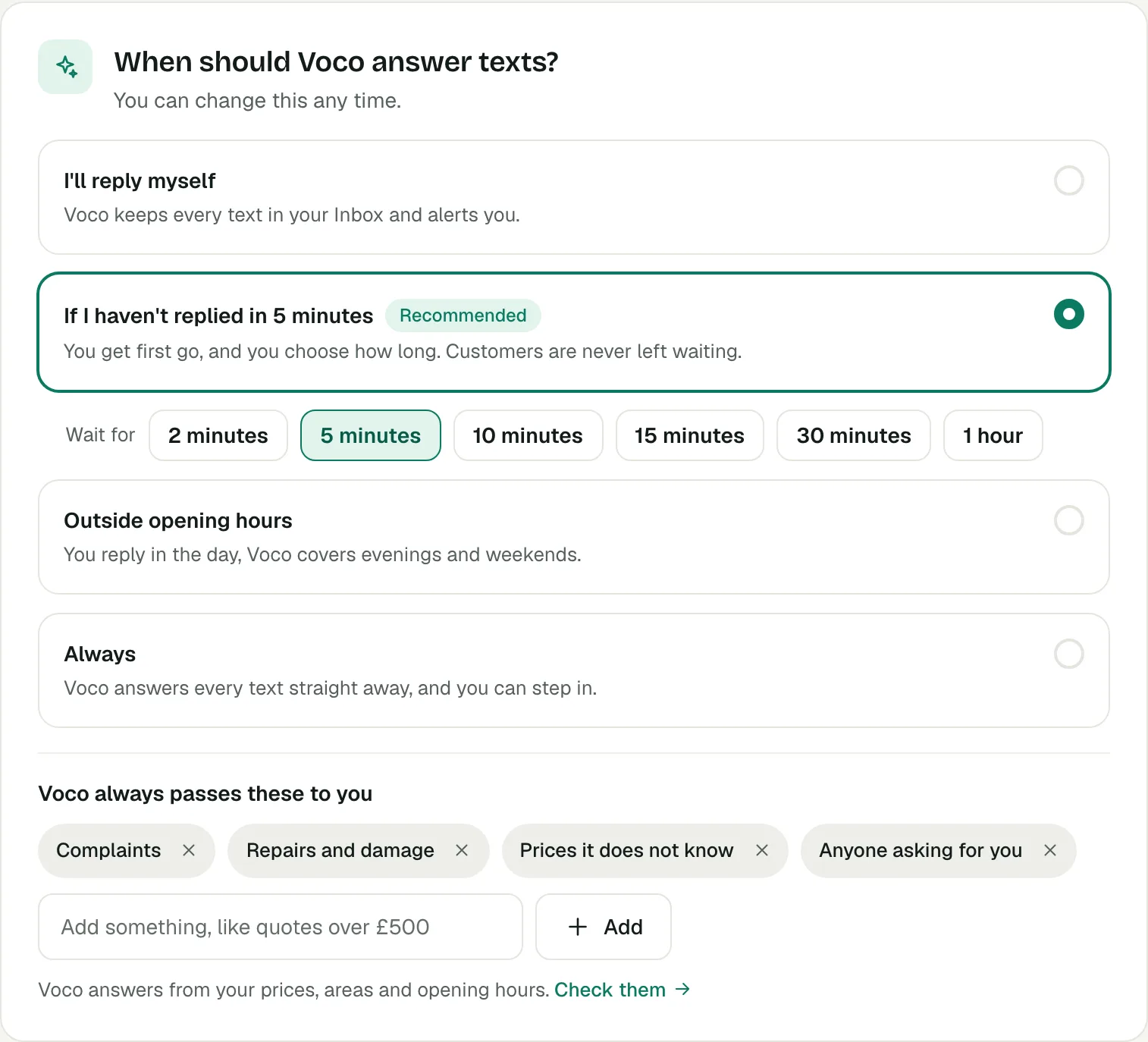
Voco answers texts in one of four ways, chosen under When should Voco answer texts? on Settings, then Texts. Most small businesses should start with If I haven't replied in 5 minutes: you get the first go at every text, and no customer waits longer than your chosen wait for an answer.
| Choice | What Voco does | Best for |
|---|---|---|
| If I haven't replied in 5 minutes | Waits the time you choose (2, 5, 10, 15 or 30 minutes, or 1 hour), then answers if nobody from your team has. | Most businesses, and anyone trying Voco for the first time. |
| Outside opening hours | Leaves texts to you while you are open, and answers in the evenings and at weekends, by your opening hours. | Offices and shops with someone at a desk all day. |
| Always | Answers every text straight away. Texts sent within a few seconds of each other are answered together. | Trades and anyone out on jobs all day. |
| I'll reply myself | Never answers. Every text lands in your inbox and you get an alert. | Businesses that want to see every text first. |
With If I haven't replied or I'll reply myself, Voco alerts you as each text arrives, through your notification settings. With Always, or Outside opening hours while you are closed, Voco only alerts you when it cannot answer, so you are not pinged for texts it has already dealt with.
What should Voco always pass to me?
Voco never answers a text about a topic on your Voco always passes these to you list. The receptionist tells the customer the team will reply soon, and Voco alerts you. The list starts with four topics, and you can remove them or add your own, up to ten in all.
- Complaints: an unhappy customer should hear from a person.
- Repairs and damage: anything that may need someone sent out, or an insurance question.
- Prices it does not know: Voco never guesses a price.
- Anyone asking for you: a customer who asks for the owner by name.
Good topics to add depend on the business. A letting agent might add tenancy renewals and deposit disputes, a tradesperson quotes over £500, and a clinic anything medical. Type the topic in the box and press Add, then Save.
How do I tell my customers about the new number?
Send your customers the message under Tell your customers it's you from your own phone before Voco starts texting them from the new number. People trust a new number when they hear about it from you first, and a text from an unknown 07 number with no warning can look like a scam.
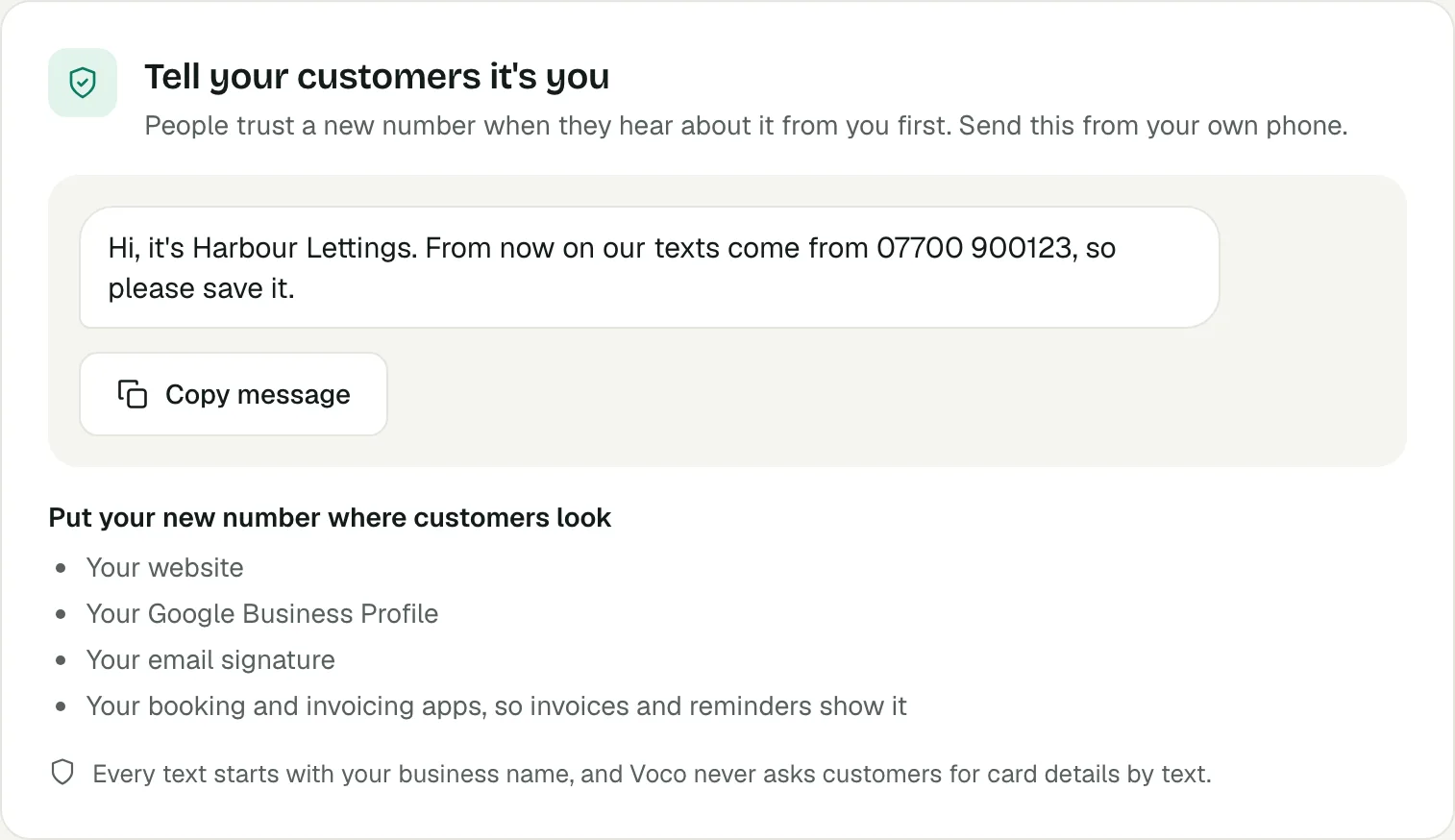
- Press Copy message. The message reads like "Hi, it's Harbour Lettings. From now on our texts come from 07700 900123, so please save it." If your customers ring a different number, it reminds them they can still ring it.
- Send it to your regular customers from the phone they know you by.
- Put the new number on your website, your Google Business Profile, your email signature and your booking and invoicing apps, so invoices and reminders show it too.
You can find this message again from the Tell customers about this number link on the Texts page.
Where do customers' texts show up?
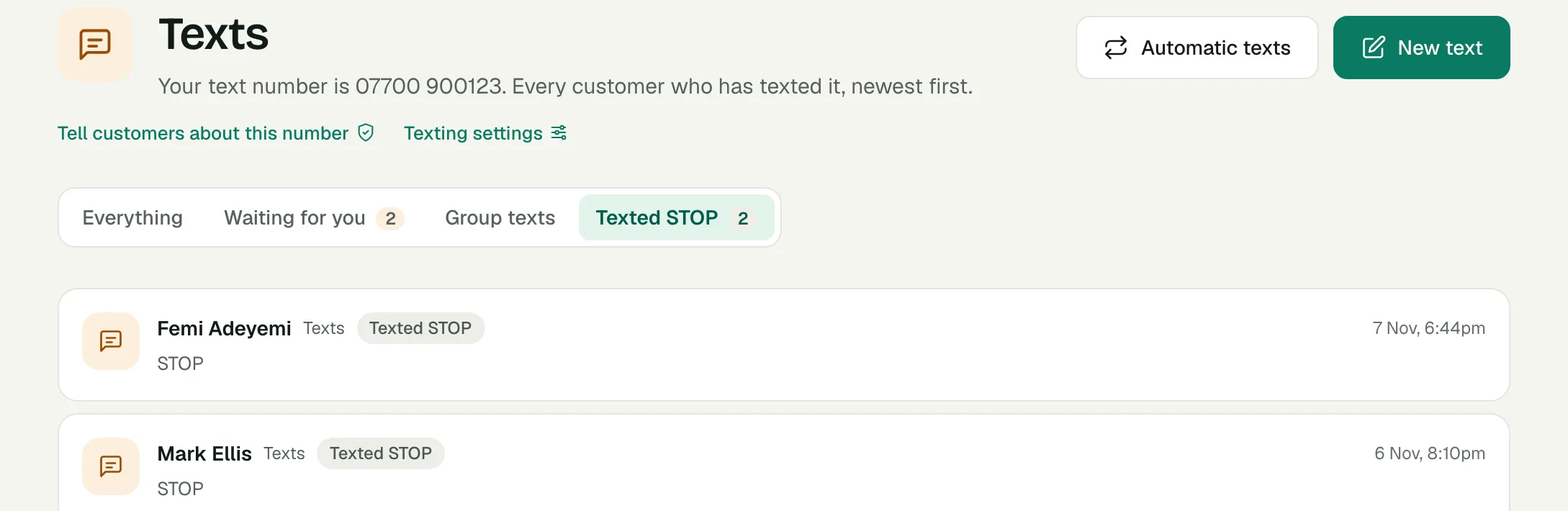
Every customer's texts show under Texts in your Voco sidebar, newest first, with the customers waiting for a reply highlighted. The Texts page also shows your number, a Waiting for you filter, Group texts and Texted STOP. Texts waiting for a reply also appear on Needs you and on the Texts card on your dashboard home page.
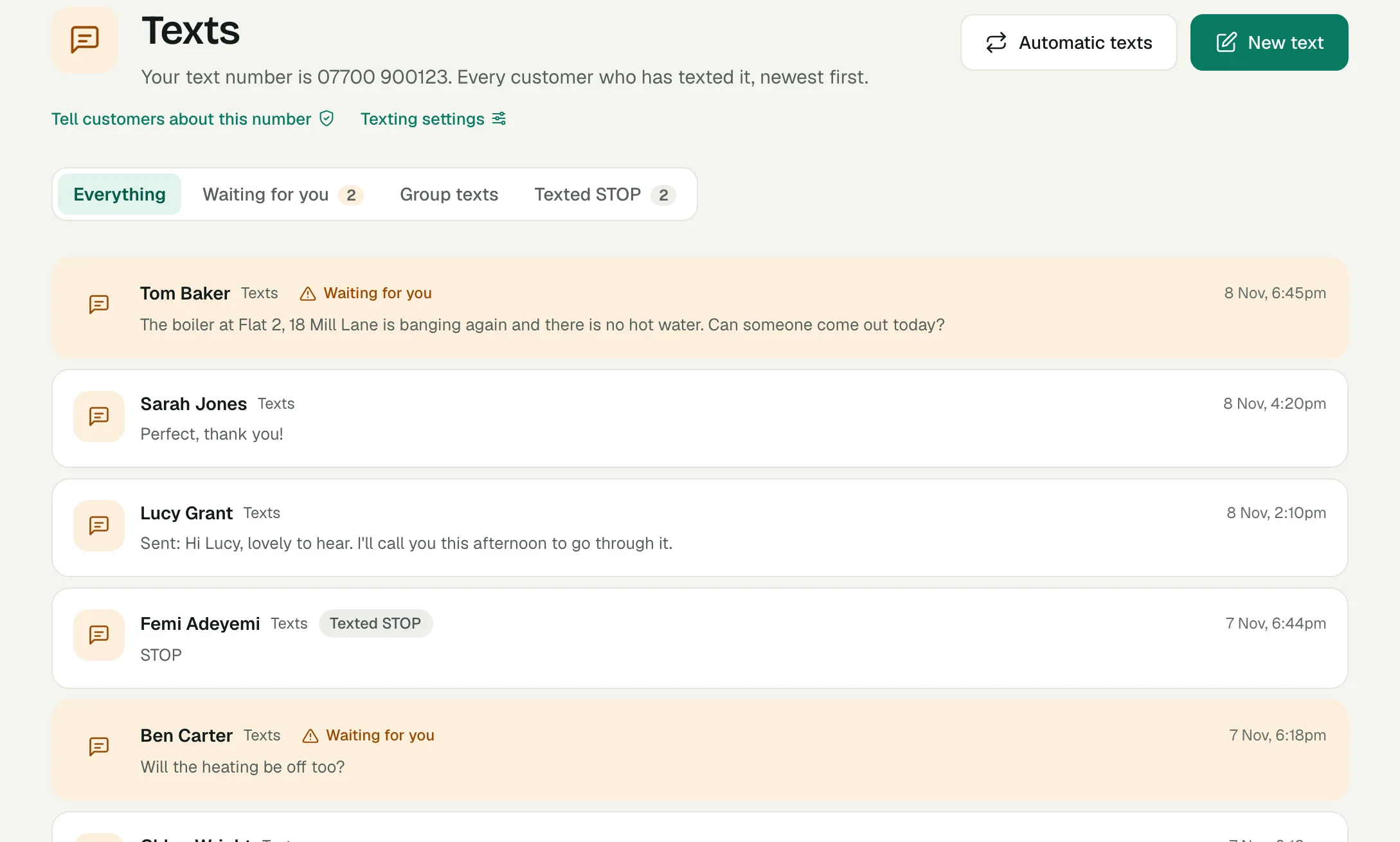
A plain thank-you, such as "Perfect, thanks!", is kept but never counted as waiting, so it does not clutter your list. A thank-you with a time, a price or a question in it, such as "Thanks, 10:30?", is treated as a reply that needs an answer.
How do I reply to a customer, or stop Voco answering them?
To reply to a customer in Voco, open them from Texts, type in the box and press Send. Your text goes from your business number, and Voco then stays quiet with that customer for a day, so you never talk over each other. The box shows how many texts your message will use: a text over 160 characters goes as more than one part.
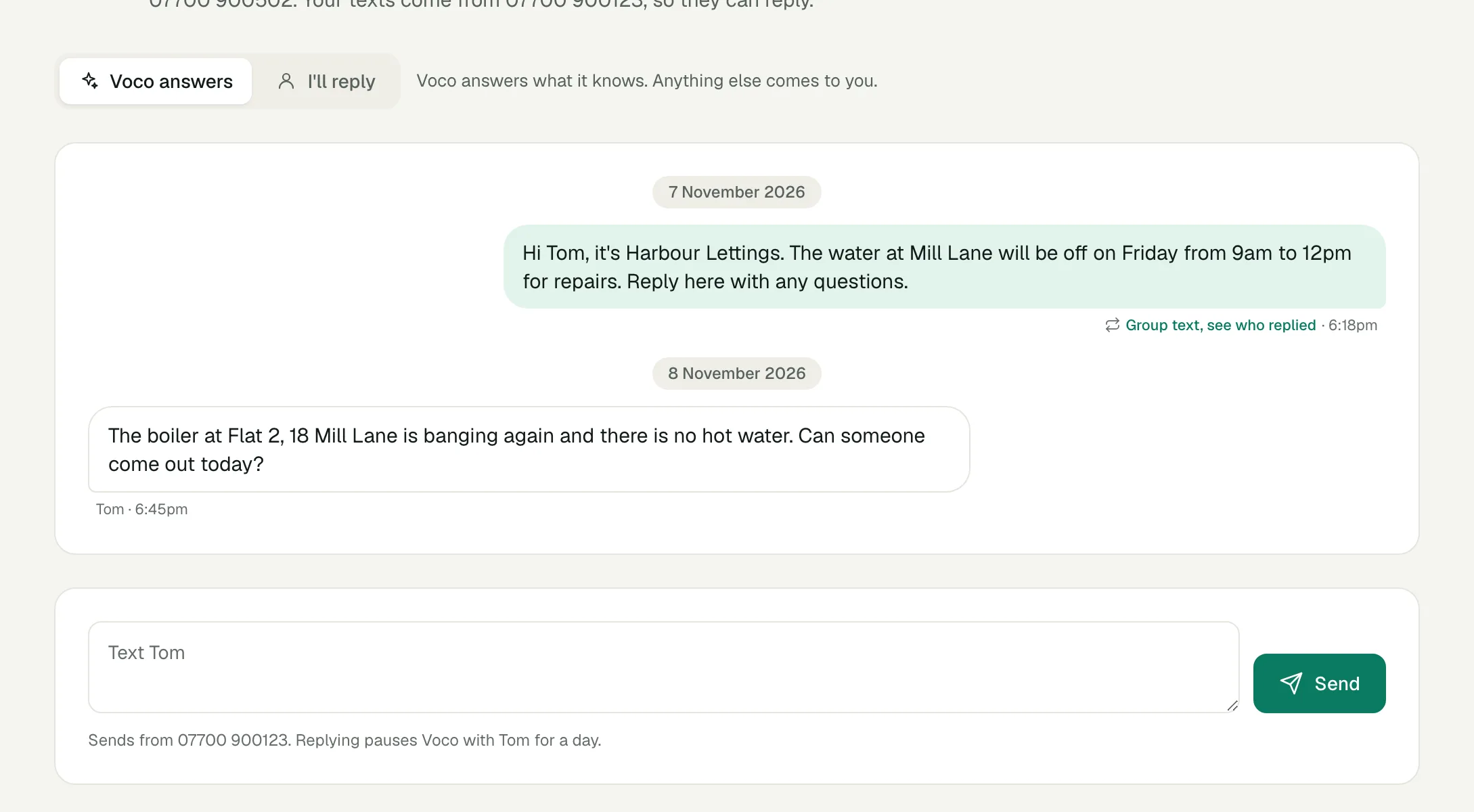
To keep Voco out of one conversation for longer, switch it from Voco answers to I'll reply at the top. Voco then leaves that customer to you until you switch it back, and alerts you when they text. Use it for a delicate renewal, a complaint, or a customer who prefers a person.
To text a customer who has not texted you, open them from Customers and press Text beside their name, or use New text and choose One person.
How do I text a group of customers?
To text a group in Voco, go to Texts and press New text, choose A group, pick who gets it, start from a ready-made text, choose when it goes, and press Send or Schedule. Each person gets their own copy, with their own name, from your number. You can also start from Text a day's bookings on the Bookings page.
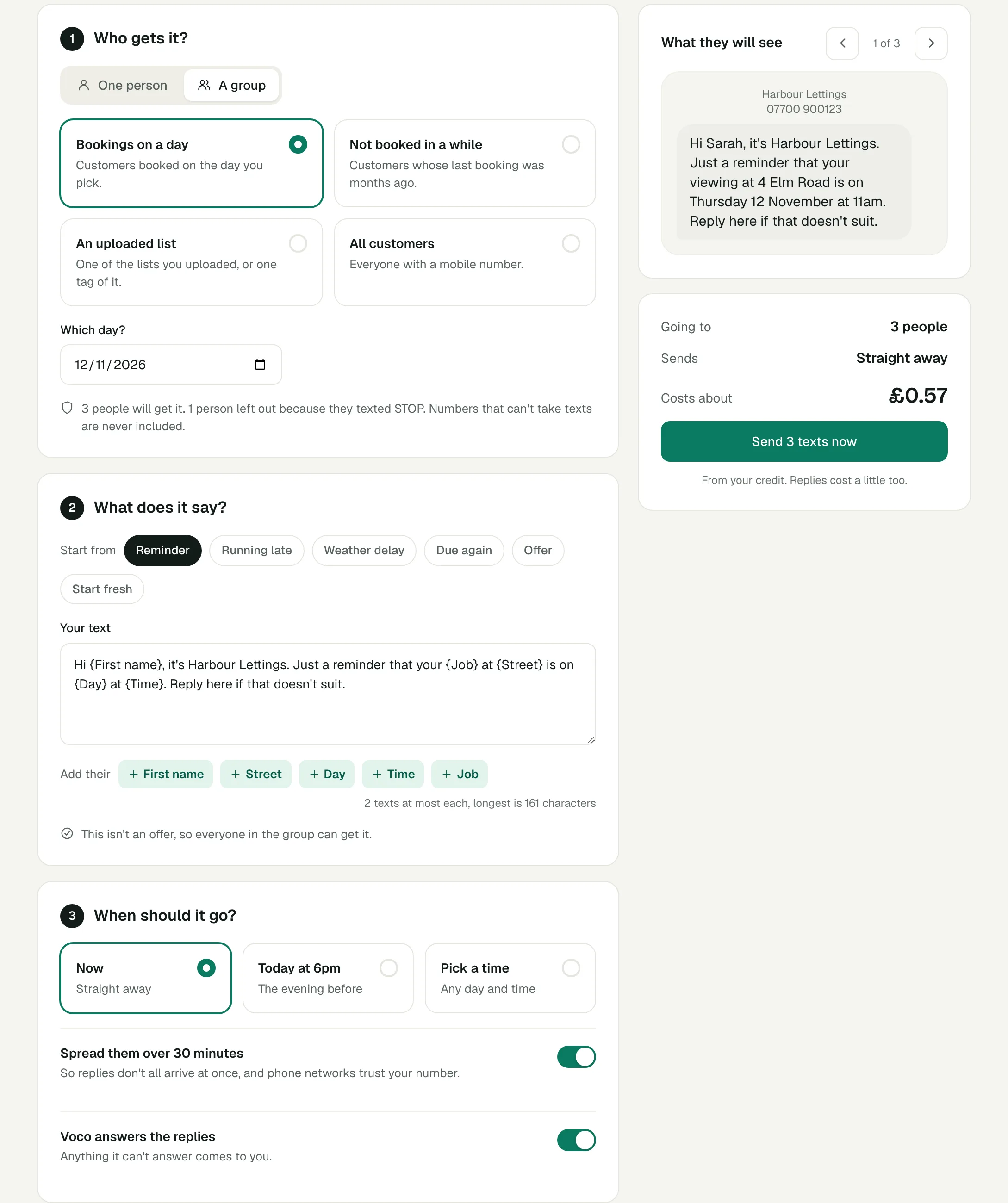
- Who gets it: everyone booked on a day you pick, customers not booked in 3, 6 or 12 months, one of your uploaded lists or one tag of it, or all customers with a mobile number. Numbers that cannot take texts, and anyone who texted STOP, are left out, and the page says how many.
- What it says: start from Reminder, Running late, Weather delay, Due again, Offer or Start fresh, then add each person's first name, street, day, time or job with the buttons under the text. The preview on the right shows each person's real copy.
- When it goes: now, at 6pm the evening before a day's bookings, or a time you pick. Switch on Spread them over 30 minutes for a big group, so replies do not all arrive at once and phone networks trust your number.
- Who answers the replies: leave Voco answers the replies on, and anything Voco cannot answer comes to you.
Before you send, the summary shows how many people it goes to, when it sends and roughly what it costs.
How do I write a group text that gets replies?
A group text gets the most useful replies when it says who it is from, gives one piece of news, and asks for one thing. Voco's ready-made texts follow that shape, so starting from one and editing it is quicker than writing from scratch.
- Start with your business name. "Hi Sarah, it's Harbour Lettings." A customer who cannot tell who is texting will not reply.
- One message per text. "The water at Mill Lane will be off on Friday from 9am to 12pm" is clearer than three bits of news.
- Say what to do. "Reply here if that doesn't suit" or "Reply with a day that suits" gets answers Voco can act on.
- Keep it under 160 characters where you can, so each person gets one text, not two. The count under the text shows the longest copy.
- Send at a sensible hour. 6pm the evening before suits reminders. Avoid late evenings unless it is urgent.
How do I see who replied to a group text?
To see who replied to a group text in Voco, open Texts, choose Group texts, then the send. The results page shows each person's copy and whether they Replied, Need you, have No reply yet or Opted out, with an Open link to each conversation. In a customer's conversation, the group text carries the label Group text, see who replied, which opens the same page.
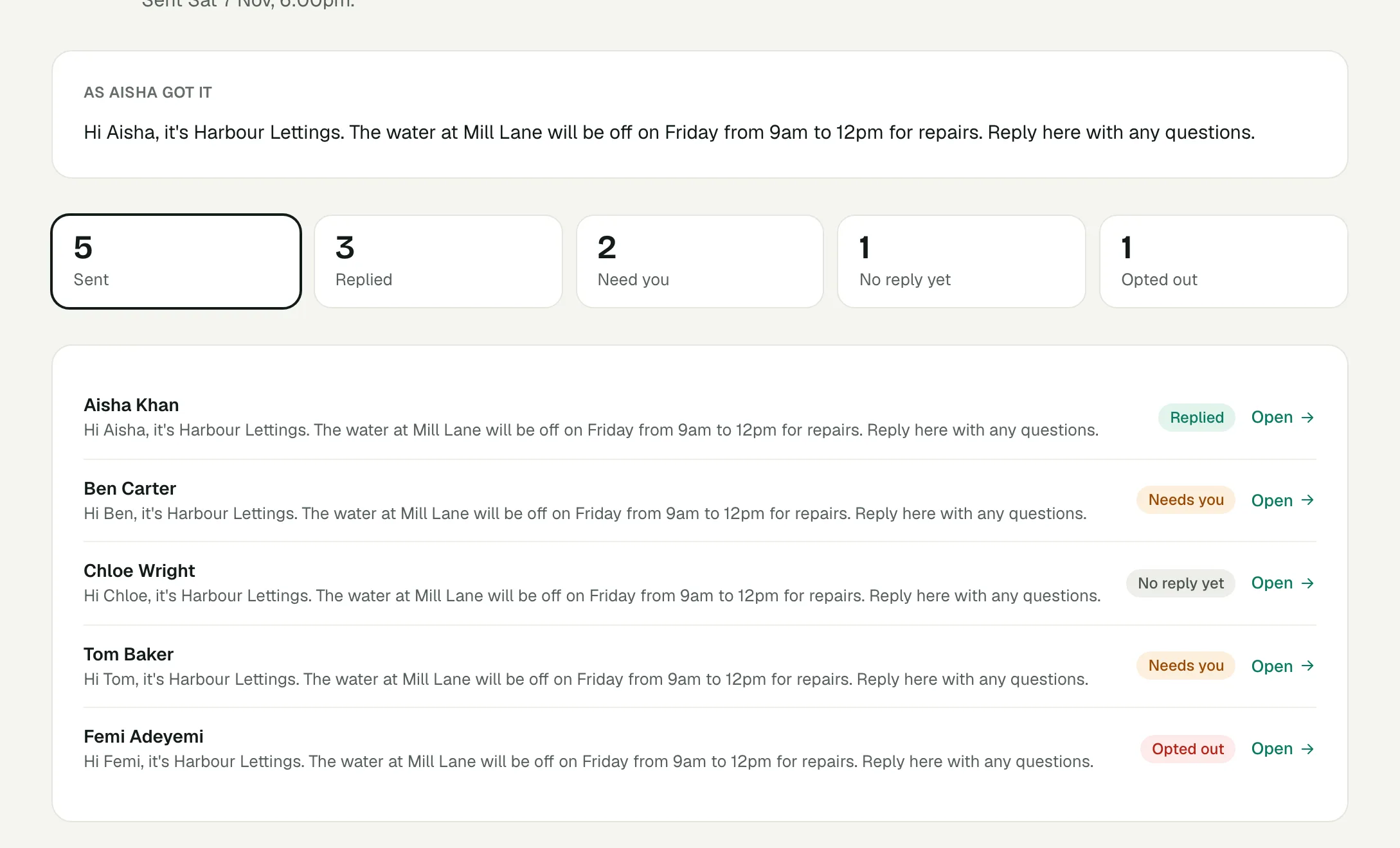
A scheduled group text can be cancelled from its page until it starts sending.
Which texts can Voco send on its own?
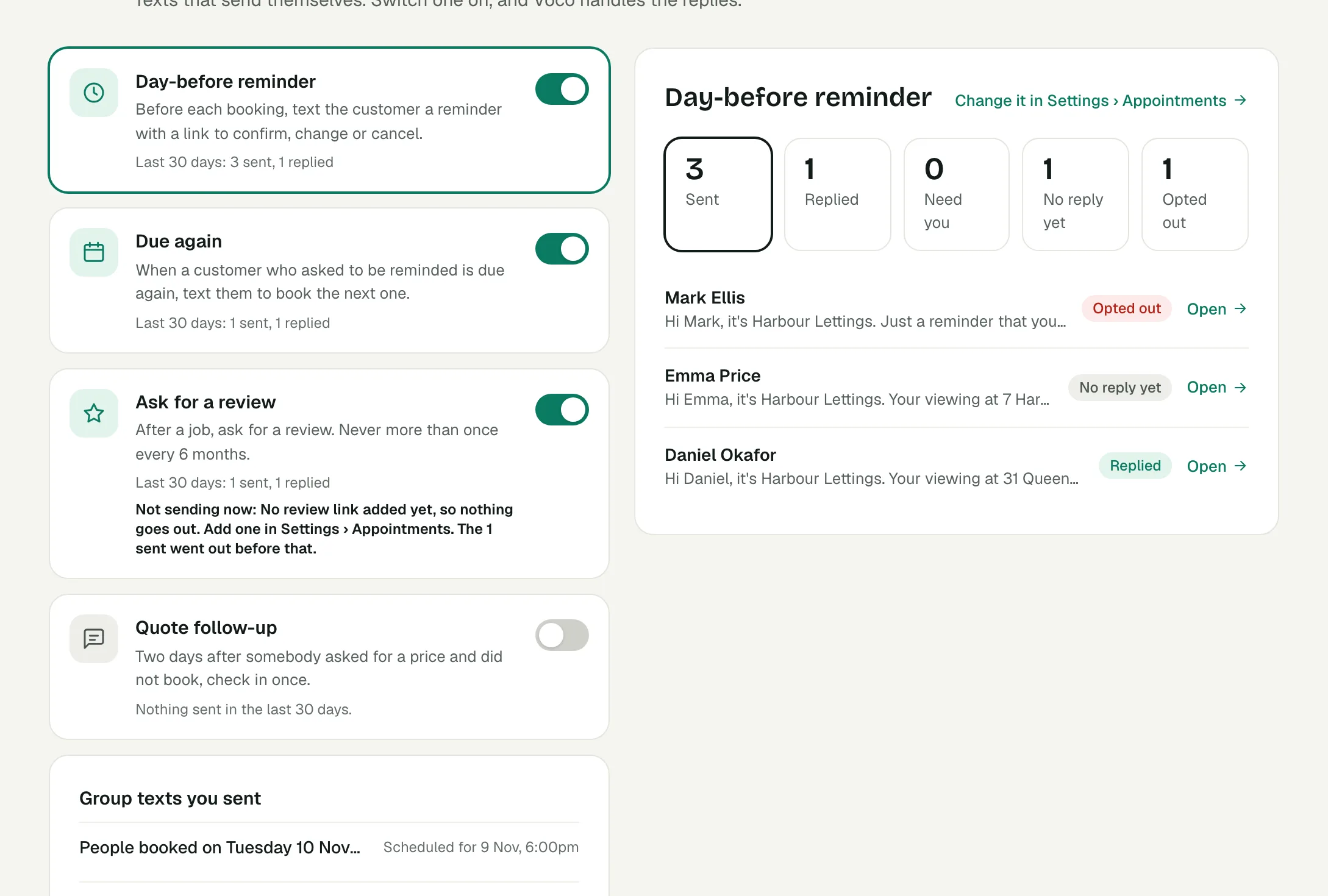
Voco sends four automatic texts once you switch them on under Automatic texts, linked from the Texts page: a day-before reminder, Due again, Ask for a review, and Quote follow-up. Each shows what it sent in the last 30 days and who replied, and Voco answers the replies.
| Automatic text | What it sends | What it needs |
|---|---|---|
| Day-before reminder | A reminder before each booking, with a link to confirm, change or cancel. | Booking texts switched on under Settings, then Appointments. |
| Due again | A text when a customer who asked to be reminded is due to book again. | At least one service with a rebooking time under Settings, then Appointments. |
| Ask for a review | A review request after a job, never more than once every 6 months. | A review link under Settings, then Appointments. |
| Quote follow-up | One check-in two days after somebody asked for a price and did not book. | Nothing else. Switch it on here or on What Voco does on its own. |
When an automatic text is on but something it needs is missing, its card says Not sending now and why, with a link to fix it.
What are the rules for texting customers in the UK?
Texts about a customer's own booking, job or question are service messages, which a UK business can send from Voco without marketing consent. Marketing texts, such as offers, need the customer's consent, or must meet the soft opt-in under the Privacy and Electronic Communications Regulations (PECR): you got their number while selling to them, you only market your own similar services, and you let them opt out when you took their number and in every message. The ICO's guide to electronic mail marketing has the detail.
Voco builds both rules in:
- A customer who texts STOP, STOPALL, UNSUBSCRIBE, QUIT or OPTOUT gets nothing more from your number until they text START. They are listed under Texted STOP, and a question they send still reaches you.
- A text that reads like an offer, or starts from the Offer text, only goes to customers who have not said no to offers, and to nobody who had an offer from you in the last 28 days. The Offer text ends with "Reply STOP to opt out".
How much do two-way texts cost?
Your Voco text number is free on every monthly plan. On pay as you go it is £3 a month, and free in any month after one in which you sent 100 or more texts. On pay as you go each text costs 9.4p, and on a monthly plan texts come out of your credits. Texts your customers send you cost a little too. See the plans.
A text over 160 characters goes as more than one part, and each part is charged, so a long text can cost two or three times as much. An emoji or a special character can make each part shorter.
Why isn't Voco answering a text?
Voco does not answer a text when one of its rules says the text is yours. Ch