To connect Stripe to Voco and take deposits, open Settings, then Payments in your Voco dashboard, press Connect Stripe and finish the steps on Stripe's own pages. Then set a deposit for each service on your Price list and press Save changes. From then on, your receptionist texts callers a secure payment link when a booking needs a deposit, and confirms the booking once it is paid. Connecting takes about 10 minutes, or 15 for a limited company. Voco payments is in beta, for businesses on the Voco beta.
What does Voco do with payments?
Voco takes deposits and balances for your jobs straight into your own Stripe account. Customers pay on Stripe's page, on their own phone, by card, Apple Pay or Google Pay, and nobody reads card details out on a call. Voco never holds your money. See Voco payments for the whole feature.
A deposit is asked for when a job is booked, by your receptionist on the call or by you from the job's card. The balance follows when the job is marked done. The customer approves any extra work before it is charged, and unpaid links are chased on the schedule you set.
Step 1: connect Stripe
Voco connects to a Stripe account that belongs to your business, set up on Stripe's own pages. In your Voco dashboard, open Settings, then Payments, press Connect Stripe and answer Stripe's questions, which takes about 10 - 15 minutes. How to connect Stripe to Voco shows every Stripe screen and what to pick on each.
Step 2: set your deposit rules
Voco asks for the deposit your rules give, never an amount the receptionist makes up. Set the rules on Settings, then Payments, and press Save changes at the foot of the page when you are done.
How do I set a deposit for each service?
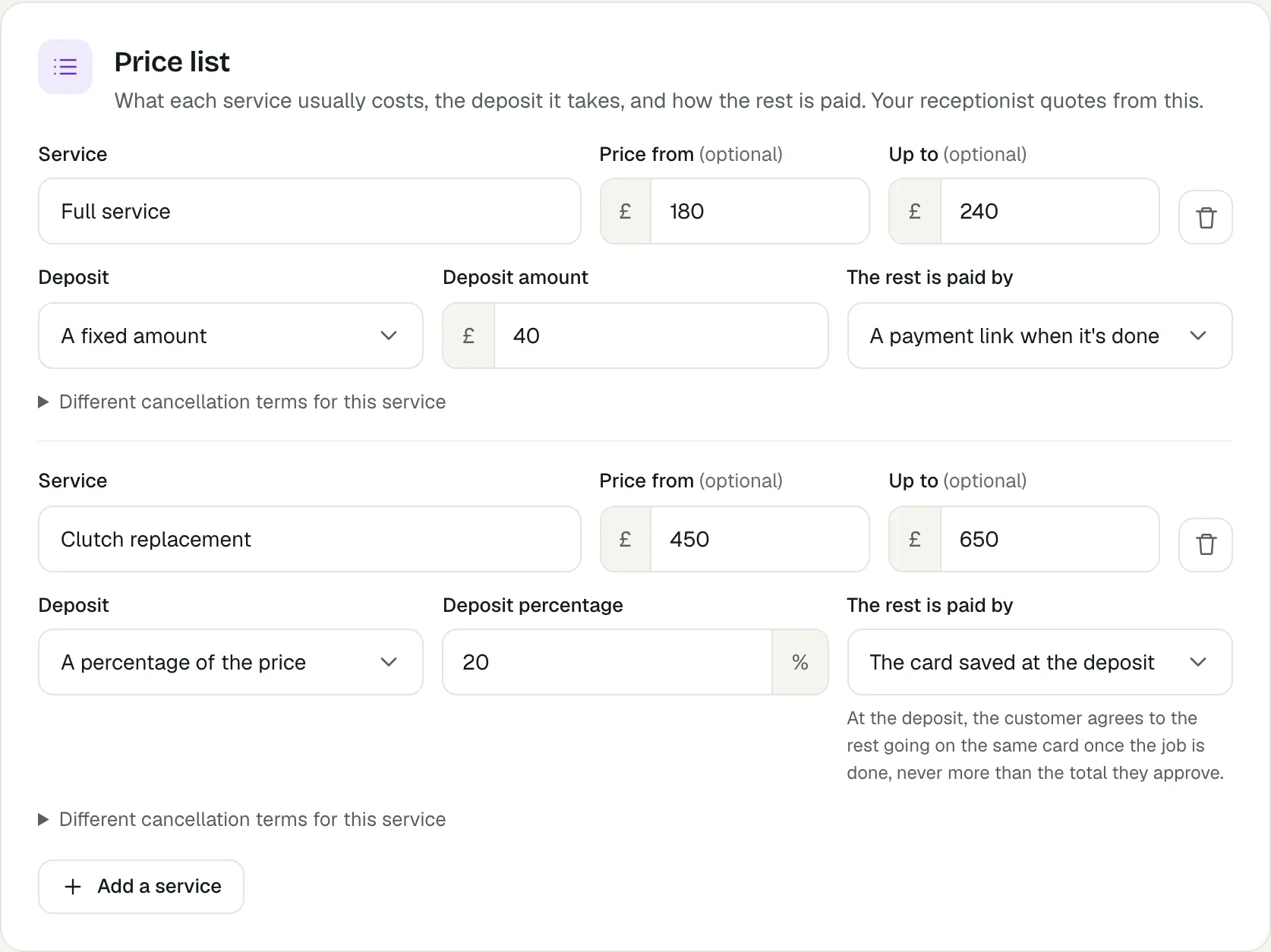
- In the Price list card, press Add a service. Type the Service, and its Price from and Up to if you like. Your receptionist quotes from this list.
- Under Deposit, choose No deposit, A fixed amount or A percentage of the price, then type the Deposit amount or Deposit percentage.
- Under The rest is paid by, choose A payment link when it's done or The card saved at the deposit. Step 4 explains the saved card.
- To give one service its own terms, open Different cancellation terms for this service.
Who pays a deposit?
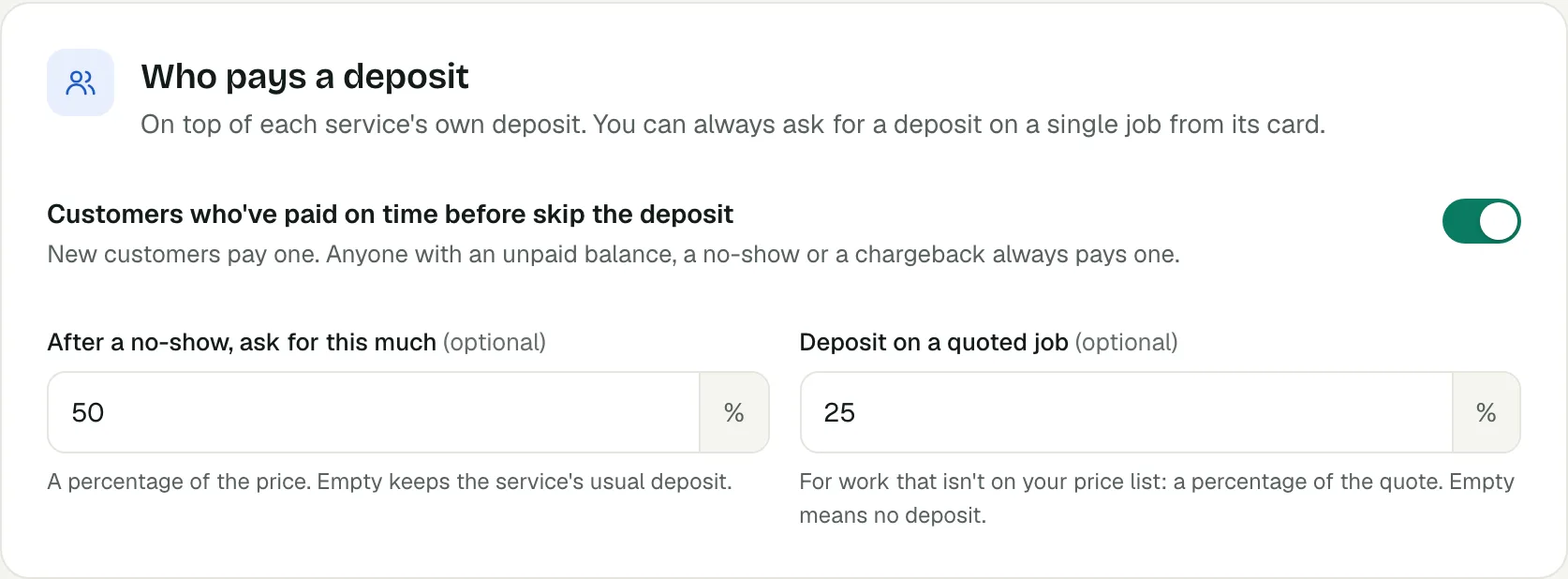
The Who pays a deposit card adds rules on top of each service's own deposit. You can always ask for a deposit on a single job from its card, too.
- Customers who've paid on time before skip the deposit: new customers pay one, and anyone with an unpaid balance, a no-show or a chargeback always pays one.
- After a no-show, ask for this much: a percentage of the price. Leave it empty to keep the service's usual deposit.
- Deposit on a quoted job: a percentage of the quote, for work that is not on your price list. Empty means no deposit.
How long is a slot held for a deposit?
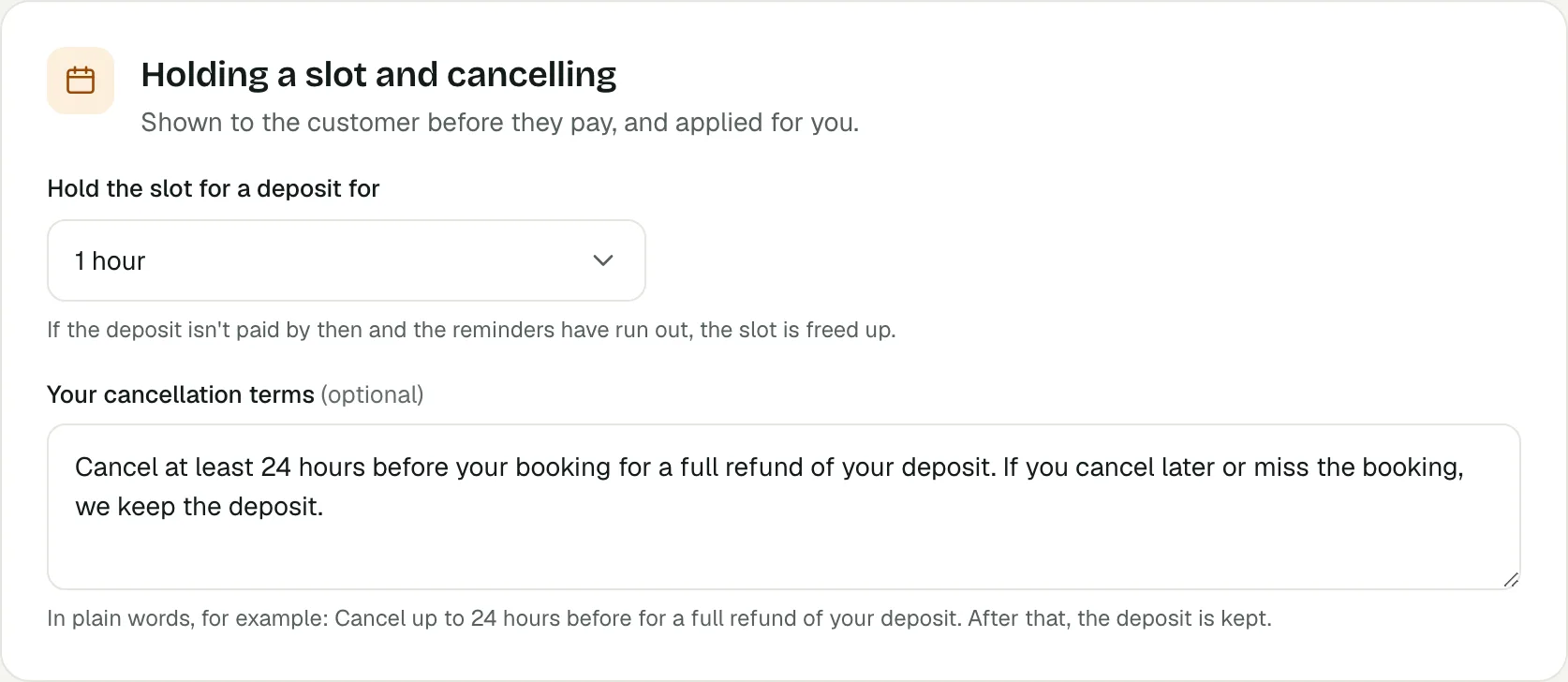
In the Holding a slot and cancelling card, choose Hold the slot for a deposit for, from 15 minutes to 24 hours. If the deposit is not paid by then and the reminders have run out, the slot is freed up. Write Your cancellation terms in plain words, because the customer sees them before they pay.
Step 3: how the link reaches the customer
Voco sends every payment link as a text to a UK mobile, with a link to pay your business on Stripe's own page. The link goes out in one of two ways.
On a call. When your receptionist books a job that needs a deposit, it asks for it, texts the link to the mobile the caller is ringing from or another UK mobile they give, and waits while they pay. When the caller says it is done, the receptionist checks with Stripe, and only once Stripe confirms does it say the payment has come through. A caller who would rather pay later can use the same text.
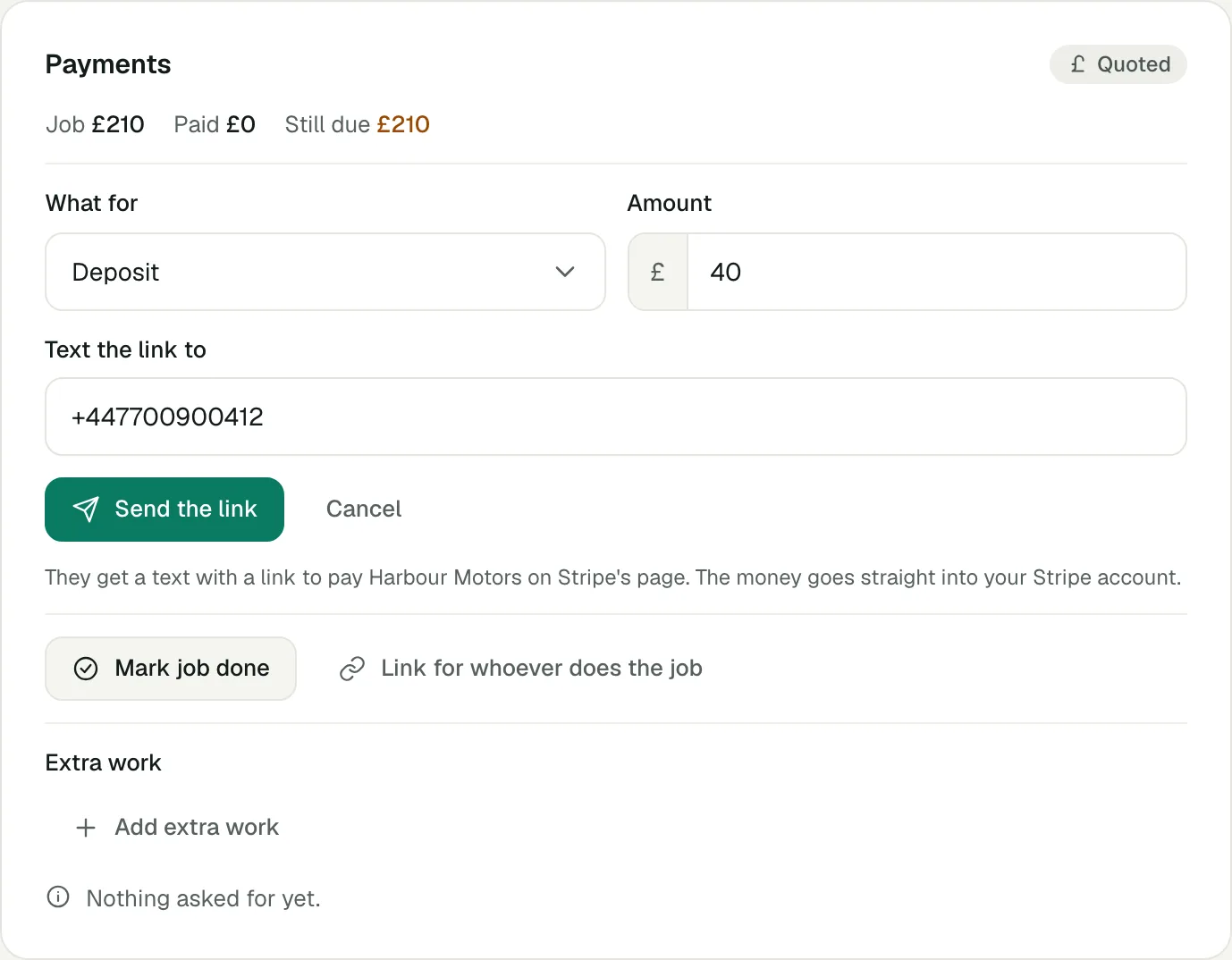
From a job's card. On the card's Payments panel, press Ask for payment. Choose What for: Deposit, Balance or Extra work (approved). Check the Amount and Text the link to, then press Send the link. Voco suggests the deposit from the job's value or your price list. While a link is open, Link to send yourself lets you copy it into an email or a message of your own.
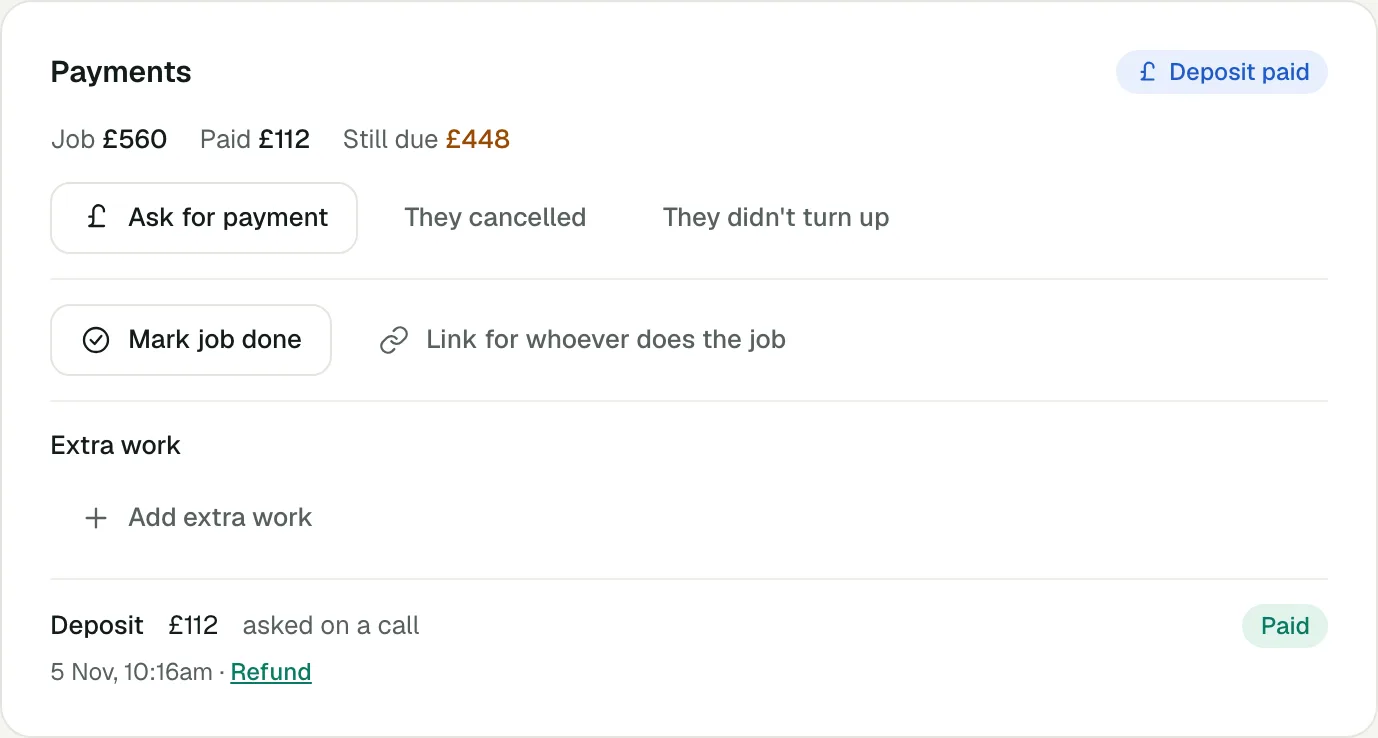
Each payment on the card shows where it stands: Waiting, Paid, Didn't go through, Link ran out, Withdrawn, Refunded or Disputed. Press Close this link to stop a link being paid.
Step 4: save the card for the balance
Voco can take the balance from the card the customer paid the deposit with, so they do not need to pay a second link. For each service that should work this way, set The rest is paid by to The card saved at the deposit. At the deposit, the customer agrees to the rest going on the same card once the job is done, never more than the total they approve. If that card is declined or has expired, Voco sends a payment link instead.
Step 5: mark the job done and take the balance
Voco asks for the balance as soon as a job is marked done. A job can be marked done in three ways:
- By you: press Mark job done on the job's card, then Yes, it's done. Voco says how much is still due before you confirm.
- By whoever did the job: press Link for whoever does the job and send them the link. They can mark the job done and add extra work for the customer to approve.
- By the customer: in the Knowing a job is done card, switch on Ask the customer "is it done?". Voco texts them an hour after a booked job, with a link to say yes or not yet. A not yet stops the balance and comes to you.
Whether the balance goes without asking you is set on the What Voco does on its own page: Take the balance when a job is done starts at Do it, then tell me. A disputed payment on the job holds the balance until the dispute is settled.

Step 6: approve extra work
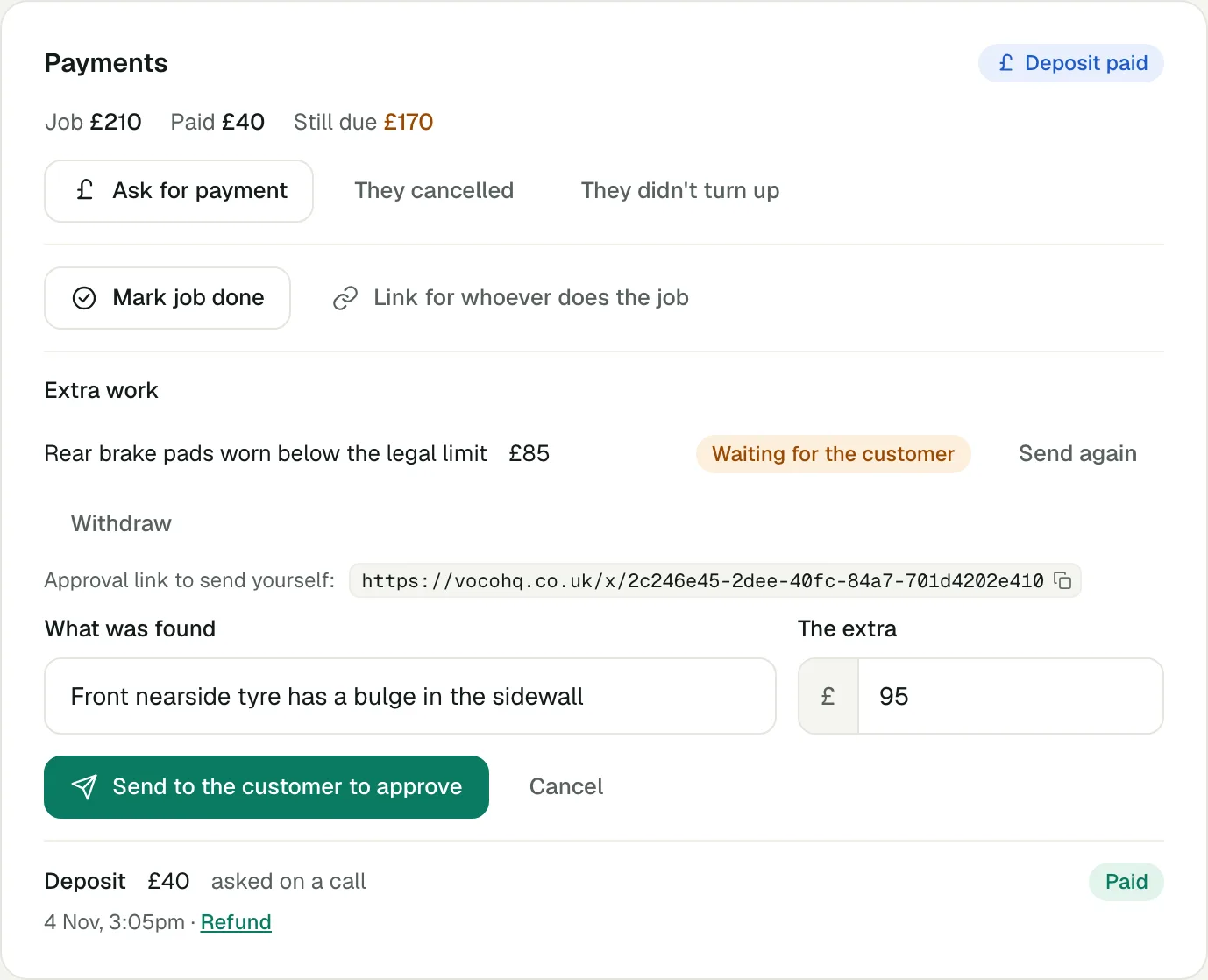
Voco asks the customer to approve extra work before anything more is charged. On the job's card, press Add extra work, fill in What was found and The extra, and press Send to the customer to approve. The customer gets a text with what was found, the extra and the new total.
The extra shows Waiting for the customer until they answer, then Approved or Customer said no. A no comes to you. While it waits, use Send again or Withdraw. Once approved on a job that is done, the extra is taken with the rest of the balance.
Step 7: set reminders and chasing
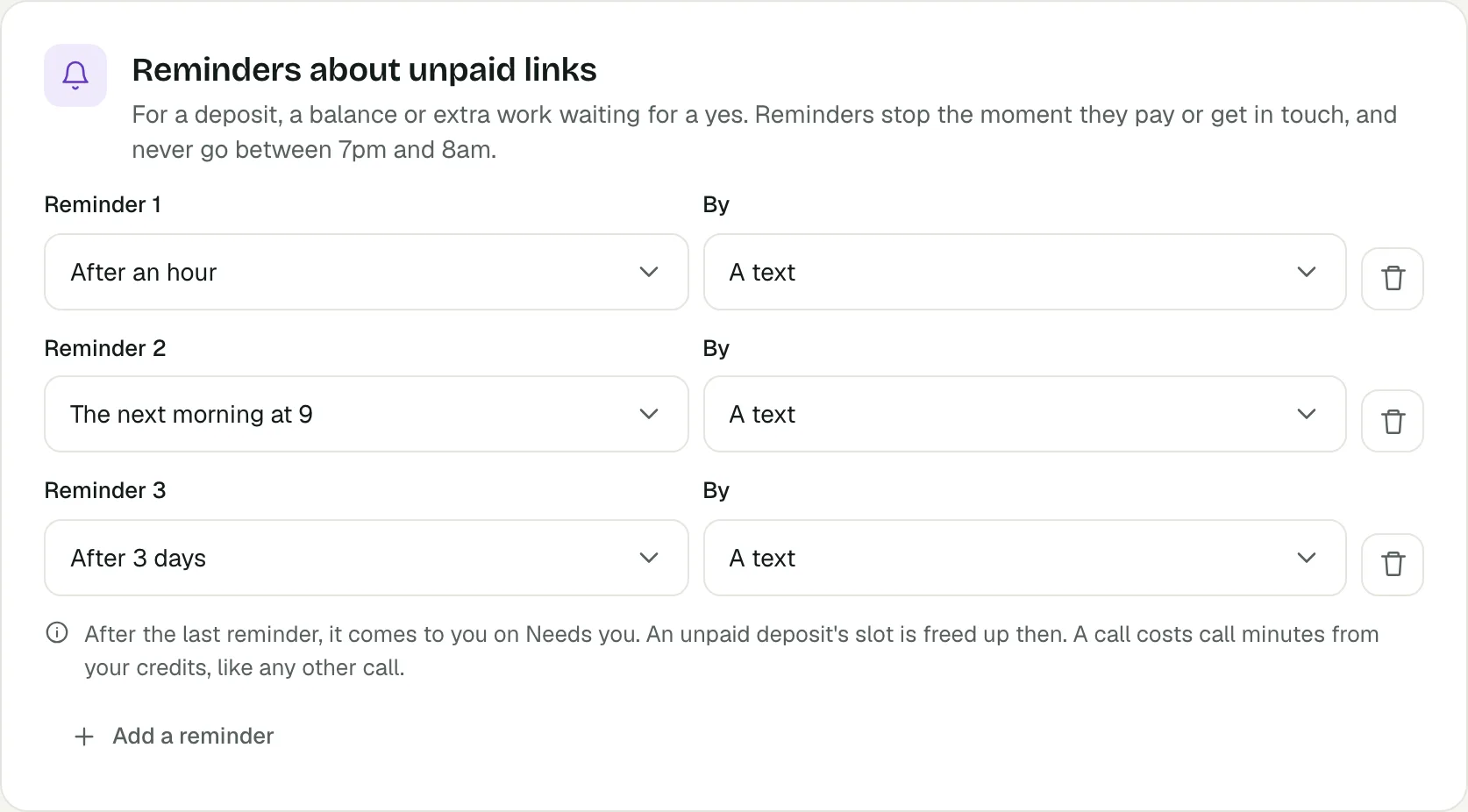
Voco chases unpaid deposits, balances and extra work on your schedule. In Reminders about unpaid links, each reminder has a wait, from After an hour to After a week, and goes By A text or A call from your receptionist. Press Add a reminder for up to 5. Voco starts with three texts: after an hour, the next morning at 9, and after 3 days. Reminders stop the moment the customer pays or gets in touch, and never go between 7pm and 8am. After the last one, it comes to you on Needs you.
For a balance still unpaid after that, switch on Text, then have your receptionist call in the Money still owed card, and choose after 7, 14, 30 or 60 days. Voco texts first and calls two days later, in your opening hours. It never chases anyone disputing the money, having a hard time, or who has been in touch. A call uses call minutes from your credits, like any other call.
Your receptionist can also mention an unpaid balance when that customer rings. In Money owed, on calls, switch on Mention an unpaid balance when a customer rings. It is off until you do. The receptionist mentions it only to a caller who has proved who they are, once, at the end of the call, and never on an emergency or a complaint.
Step 8: refunds and cancellations
Voco applies your cancellation terms when a customer cancels or does not turn up. Set them in the When a customer cancels card: Full refund if they cancel at least a number of hours before the job, then A later cancellation keeps and A no-show keeps, each All of the deposit, Half of the deposit or None of it. Make sure your written terms say the same.
On the job's card, press They cancelled or They didn't turn up. Voco shows what your terms give back, and Record it and refund applies them. Whether a refund under your terms goes without asking you is set by Refund a deposit under your cancellation terms on the What Voco does on its own page, which starts at Ask me first.
To refund any payment by hand, press Refund beside it, check the amount and press Refund. It goes back to their card from your Stripe account, and cannot be undone. A full refund gives Voco's fee back.
How do holding deposits work for letting agents?
For letting agents in England, a lettings card takes a Holding deposit, held to the Tenant Fees Act 2019. Voco will not take more than one week's rent, and the card shows the date by which to agree the tenancy, refund the deposit, or keep it for a reason the law allows. Voco reminds you two days before. See Voco for letting agents.
Step 9: choose who can move money
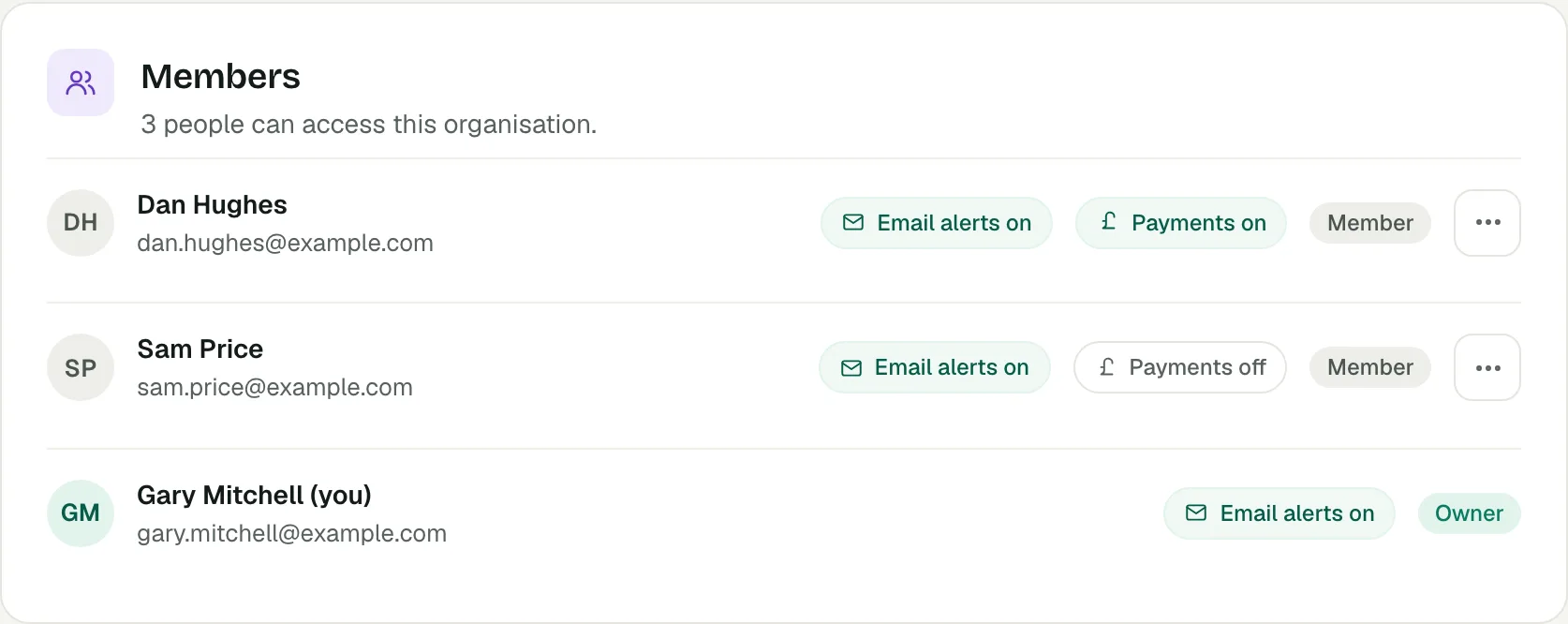
Voco's Payments permission decides which team members can move money. The owner always can. On the Team page, the owner switches Payments on or Payments off for each other member. With it on, they can connect Stripe, refund and change amounts. With it off, they see whether jobs are paid, but cannot refund or change amounts. Anyone on the team can still mark a job done.
Step 10: check fees and payouts in Stripe
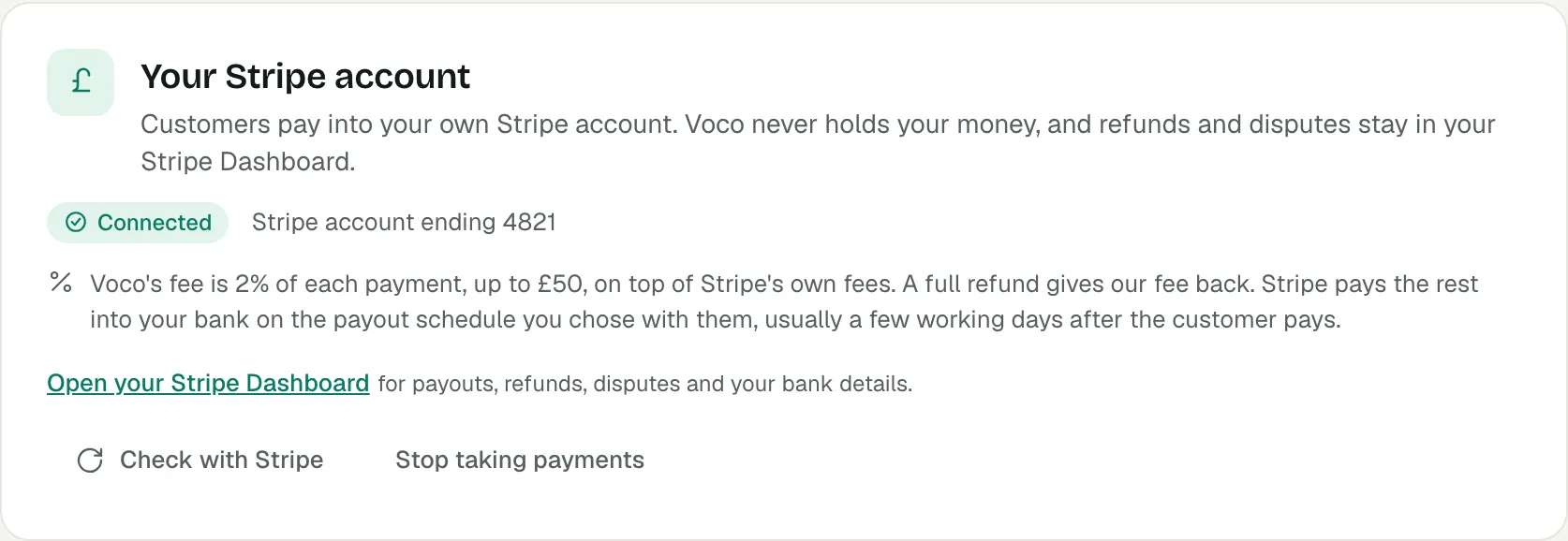
Voco's fee is shown in the Your Stripe account card, before and after you connect. It comes out of each payment and is never added to what the customer pays, and it depends on your plan: see the job payments fee on each plan. Stripe charges its own card fee as well, set out on Stripe's pricing page.
Stripe pays the rest into your bank on the payout schedule you chose with them. Stripe, not Voco, decides how long each payout takes: see Stripe's guide to payouts. Press Open your Stripe Dashboard for payouts, refunds, disputes and your bank details. A disputed payment shows Answer the dispute in Stripe on the job's card, and comes to you on Needs you.
To stop taking payments, press Stop taking payments, then Yes, stop. Links already sent will stop working.