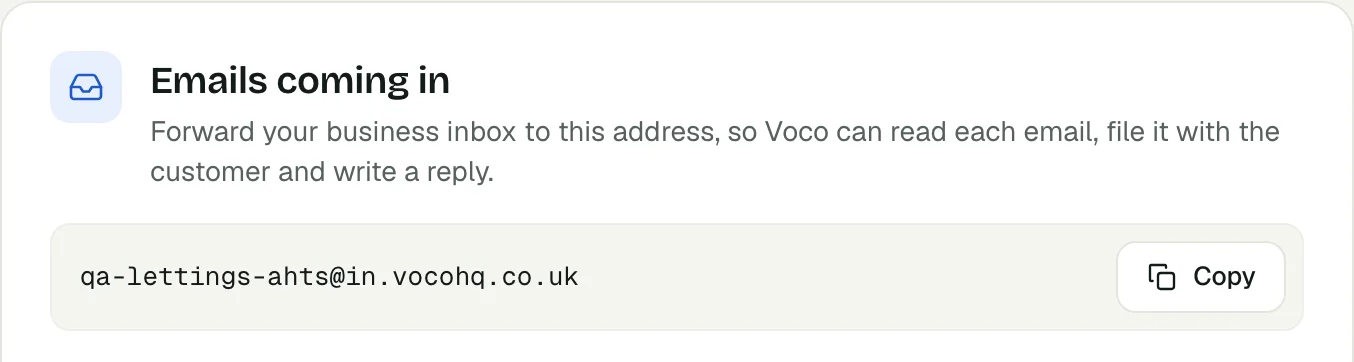
To forward your business email to Voco, open Settings, then Email in your Voco dashboard, copy your Voco address from the Emails coming in card, set your mailbox to forward a copy of incoming mail to it, and press Send a test. Setup takes about 10 minutes. Your own inbox keeps every email. From then on Voco gets each new email, sorts it, files it with the customer and writes a reply that waits for your approval.
What does Voco do with my forwarded email?
Voco reads each forwarded email and files it as one of 8 types: Complaint, Repair, Asked for a call, Booking, Enquiry, Other, Supplier & admin or Spam. An email Voco could not read yet shows as Not sorted yet, and Voco tries it again every hour. Each email is linked to the customer's record, beside their calls and chats.
For complaints, repairs, requests for a call, bookings and enquiries, Voco writes a reply from what your receptionist knows about your business. Replies to complaints, repairs and requests for a call always wait for you to send them. Only enquiry and booking replies can ever go out on their own, and only if you choose that.
Email also feeds your phone calls. When a customer asks to be rung, Voco can ring them for you, once you confirm. When someone who emailed rings your Voco number, your receptionist knows about their open email. See Voco email for the whole feature.
Where do I set up email in Voco?
Voco shows the same six setup steps in two places: the Set up email card on Inbox, then Email, and the Emails coming in card on Settings, then Email. The steps are: Your Voco address, Turn on forwarding in your mailbox, Send a test, Who can Voco answer on its own?, Show Voco how you reply, and a tip to BCC your Voco address. Each step ticks itself off when it has really happened.
Only an owner or admin on your Voco account can change Email settings or send a test. Team members see the steps, with a note to ask the owner or an admin.
Step 1: copy your Voco address
Your Voco address is a forwarding address that belongs to your business alone, such as name-ab12@in.vocohq.co.uk. Find it under Settings, then Email, in the Emails coming in card, and press Copy.
If your business has no address yet, the first step says Create your Voco address. Press Create my email address. Nothing arrives at the address until you forward email to it.
Step 2: turn on forwarding in your mailbox
Every mail provider can forward a copy of incoming mail to another address. Choose the steps for yours below, and always keep a copy in your own inbox. In Voco, the same steps open when you answer Which email do your customers write to? with Gmail, Outlook, Zoho Mail or another provider.
Forwarding sends Voco only the emails that arrive after you switch it on, never your old emails. Gmail says so in its own help: it forwards "all new messages", except spam (Google Gmail Help). To bring in an enquiry you have not answered yet, forward that one email to your Voco address yourself.
How do I forward Gmail or Google Workspace to Voco?
Gmail forwarding needs a computer, not the Gmail app, and Gmail asks you to confirm the Voco address before it forwards anything.
- In Gmail, click Settings (the cog, top right), then See all settings.
- Open the Forwarding and POP/IMAP tab and click Add a forwarding address.
- Paste your Voco address, then click Next, Proceed and OK.
- Gmail sends a confirmation code to your Voco address. Within a minute, your Voco setup steps show "Gmail wants you to confirm the forwarding", with a Confirm it button and the code. Press Confirm it, or type the code into the box Gmail shows beside the address and click Verify.
- Back in Gmail, refresh the page and open Forwarding and POP/IMAP again. Choose Forward a copy of incoming mail to and pick your Voco address.
- Choose keep Gmail's copy in the Inbox, then click Save Changes at the foot of the page.
On a Google Workspace account, the option to forward only appears if your admin allows automatic forwarding in the Admin console, under Gmail, then End User Access (Google Workspace Admin Help).
How do I forward Outlook or Microsoft 365 email to Voco?
Outlook forwards to your Voco address with no code to confirm.
- In Outlook on the web or the new Outlook for Windows, select Settings (the cog), then Mail, then Forwarding. On Outlook.com the page is called Forwarding and IMAP. Sign in again if Outlook asks.
- Turn on Enable forwarding and paste your Voco address.
- Tick Keep a copy of forwarded messages where it is shown, then select Save.
Microsoft 365 business accounts often block forwarding to addresses outside your company. Since 2021, new Microsoft 365 organisations have automatic external forwarding switched off by default, and blocked forwarding shows the error "5.7.520 Access denied" (Microsoft Learn). Your IT admin can allow it in the outbound spam filter policy, by setting automatic forwarding to "On - Forwarding is enabled", for your mailbox alone if they prefer.
How do I forward Zoho Mail to Voco?
Zoho Mail sends a verification code to your Voco address, and Voco shows the code in your setup steps.
- In Zoho Mail, open Settings, then Mail Accounts, and select the address customers email.
- In the Forwards section, add your Voco address.
- Within a minute, your Voco setup steps show "Zoho Mail wants you to confirm the forwarding", with the code.
- In Zoho, click the Verify icon beside your Voco address, enter the code, click Confirm and save.
- Leave Delete original email copy after forwarding unticked, so you keep your own copy.
Zoho Mail cannot forward from a POP account, and it switches forwarding off after 10 failed forwards in a row (Zoho Mail Help). If your organisation's Zoho admin manages forwarding, ask them to add the address.
How do I forward email from other providers?
Any other mail provider, such as your web host or domain company, forwards email from its webmail or control panel. Look for Forwarding, Forwarders or Redirect in the settings for your mailbox, add your Voco address, and choose the option that keeps a copy in your mailbox. If your provider sends a confirmation email or code, Voco shows it as "Your email provider wants you to confirm the forwarding".
Can my website contact form send to Voco?
Yes. A website contact form can send each submission to your Voco address as well as to you. In your form's settings, add your Voco address where submissions are emailed, often called Send to, Recipient or Notification email, alongside your own address.
Step 3: send a test
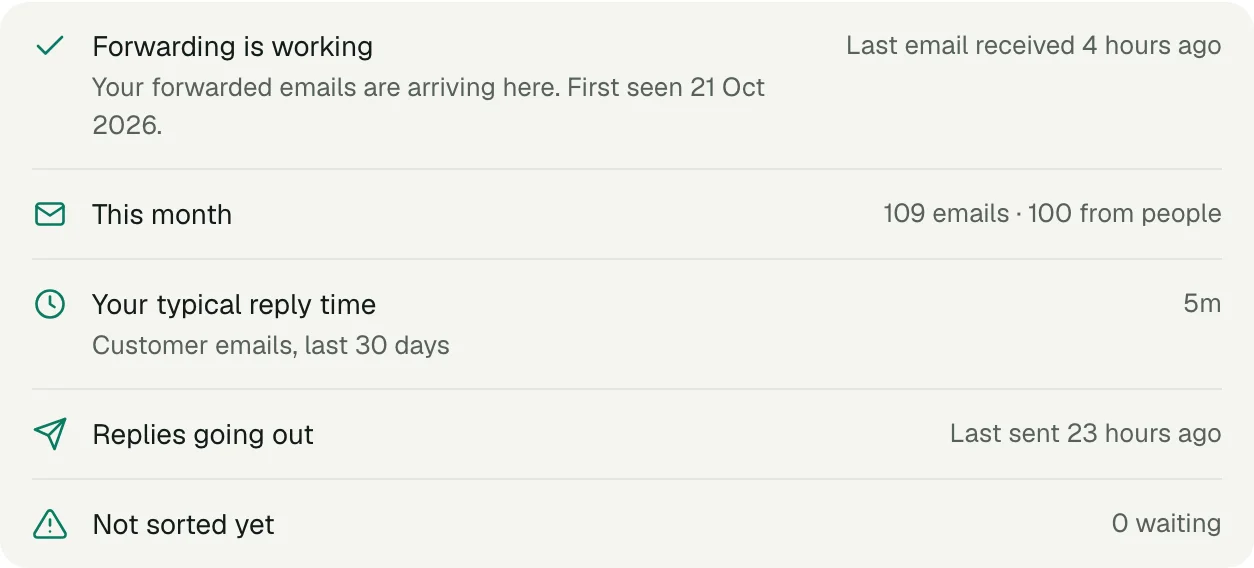
Voco's forwarding test sends an email to the mailbox you forward from and waits for it to come back through forwarding, usually within a minute. In the Check it's working box, check the mailbox address is the one you forward from, and press Send a test.
When the test comes back, the step turns into Forwarding is working, and the Emails coming in card shows which mailbox the emails come from and when the last one arrived. If Voco says "The test has not come back yet", check that forwarding is switched on and saved, that the test did not land in spam, and that the address is the mailbox you forward from. On a work account, your admin may need to allow automatic forwarding. Then send another test.
Step 4: choose who Voco can answer on its own (optional)
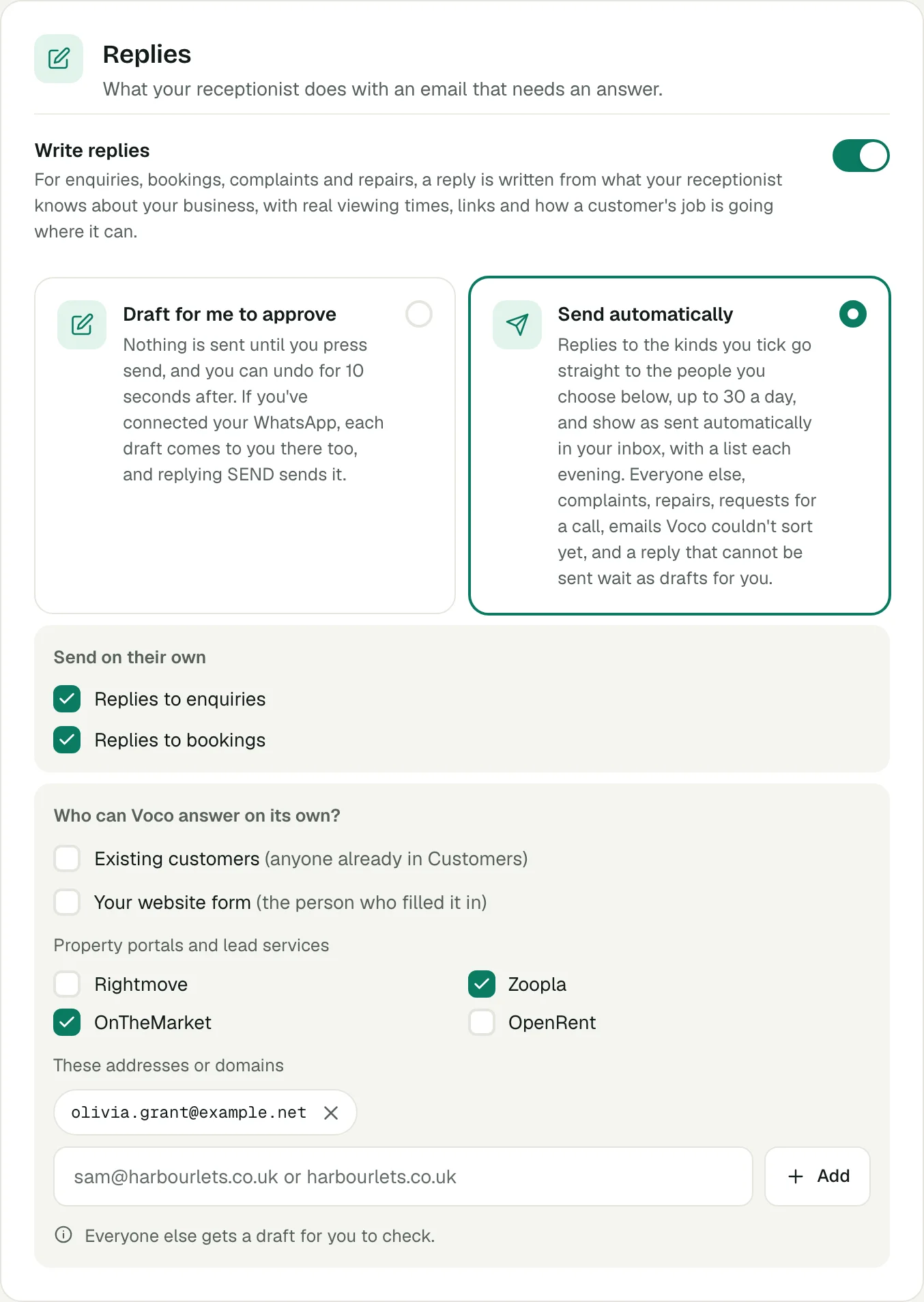
Voco drafts every reply for you to check until you choose otherwise. The step Who can Voco answer on its own? offers Choose who or Not now. If you choose, tick the people Voco may answer without you: Existing customers, Your website form, the lead services for your line of work, and any addresses or domains you add. Everyone else gets a draft for you to check.
The same list sits in the Replies card on Settings, then Email. Choose Send automatically, then tick Replies to enquiries, Replies to bookings or both under Send on their own. Complaints, repairs, requests for a call, emails Voco could not sort yet and anyone not on your list always wait as drafts. You get a list each evening of what went out.
Step 5: show Voco how you reply (optional)
Voco's drafts sound more like you once it has seen a few of your replies. In the step Show Voco how you reply, paste up to 10 replies you have sent to customers and press Save these replies. Customers' names, emails, numbers and addresses are hidden before anything is kept.
You can also forward replies you have sent to your Voco address with Voco example in the subject, one email each. After that, Voco also learns from replies you change before sending and replies you BCC from your mailbox. The How you reply page under Settings shows your style card and the replies Voco learns from.
Step 6: add Voco in BCC when you reply from your own mailbox
When you answer a customer from Gmail, Outlook or any normal mailbox, add your Voco address in the BCC field. Voco then files your reply on the same email, marked Sent from your mailbox, counts the customer as answered and does not write a second reply. BCC is a hidden copy, so the customer never sees it.
Replies you send from your Voco dashboard are recorded already and need no BCC. Once forwarding works, the Emails coming in card shows this tip with a copy button. Most mail apps can save the address as a contact, which makes it quicker to add.
What happens if my email forwarding stops?
Voco warns you in red when forwarding stops. It watches for two signs: a mail provider's own notice, such as Gmail or Zoho Mail saying forwarding has been disabled, or a bounce from a mailbox that could not pass an email on; and an inbox that has gone quiet for much longer than usual.
Voco works out "usual" from the last 28 days of your email, counting only the days of the week that normally bring email, so a quiet weekend is not a warning. A business that gets about 40 or more emails a day is warned after 1 day without email, 10 or more after 2 days, 3 or more after 3 days, and 1 or more after 4 days. A quieter inbox, or one in its first week, is warned after 5 days. Voco never warns in under 24 hours.
The warning reads "Forwarding stopped on" a date, or "No email for" a number of hours or days. It shows on the Email page and in Email settings, as a card on Needs you and in your notifications bell, and on the alerts you get from Voco. Press Fix forwarding to open Turn forwarding back on on Settings, then Email, with your provider's steps and Send a test. The warning stays until a forwarded email or a test arrives, then Voco shows Forwarding works again.
How does Voco handle Rightmove, Zoopla and other lead emails?
Property portals and lead services send their enquiries by email, so forwarding them lets Voco answer them too. Voco recognises leads from Rightmove, Zoopla, OnTheMarket, OpenRent, Checkatrade, MyBuilder, Rated People and Bark, and from website form services such as Wix, Squarespace, Jotform and Typeform. It reads the enquirer's name, email and phone number from the lead, so the customer is the person, not the portal.
A lead from Rightmove, Zoopla, OnTheMarket, OpenRent, the trade directories or a form service joins that person's open conversation, so you see each enquirer once. Bark sells each lead on its own, so each Bark lead is its own conversation. When a lead hides the enquirer's email, Voco shows Reply on Bark (or the service's name) instead of sending an email that would only reach the service.
Can Voco send replies from my own domain?
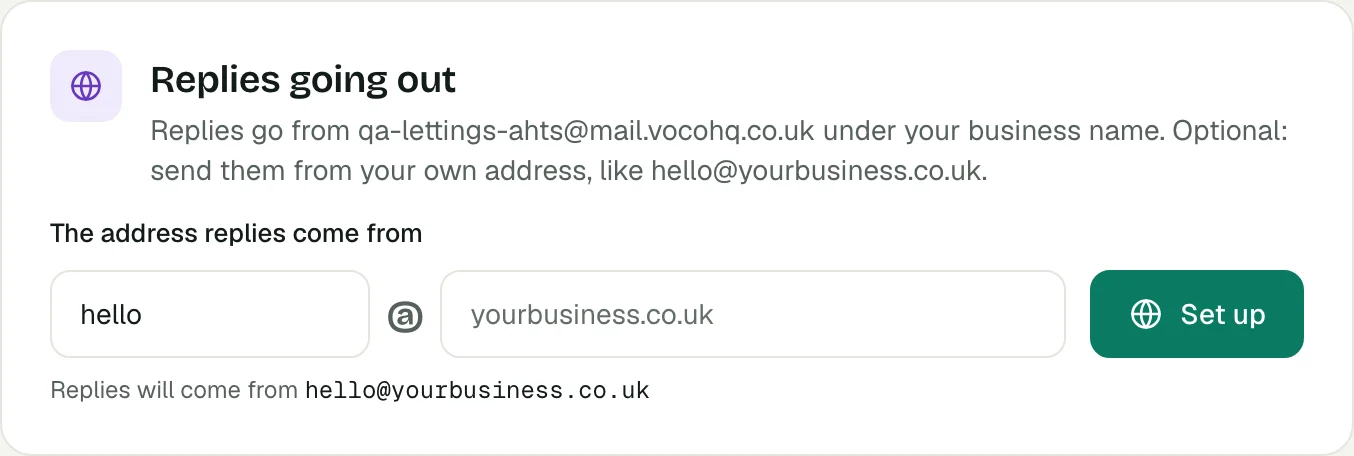
Yes, optionally. By default, Voco sends replies from your Voco sending address, such as name-ab12@mail.vocohq.co.uk, under your business name. To send them from your own address, such as hello@yourbusiness.co.uk, use the Replies going out card on Settings, then Email.
- Under The address replies come from, type the name before the @ and your domain, then press Set up.
- Voco shows two DNS records, each with a host and a value and a copy button. Press Copy both records to copy them together.
- Add both records wherever you manage your domain's DNS, then press Check. The domain shows Waiting for DNS until both records are found, then Verified.
If someone else looks after your website or domain, use Send these to your web developer. Type their email address and an optional note, and press Send instructions. Voco emails them both records with plain instructions, and their reply comes to you. Adding the records changes nothing else about your website or your email. To go back to the Voco address, press Stop using my domain.
What happens after forwarding is on?
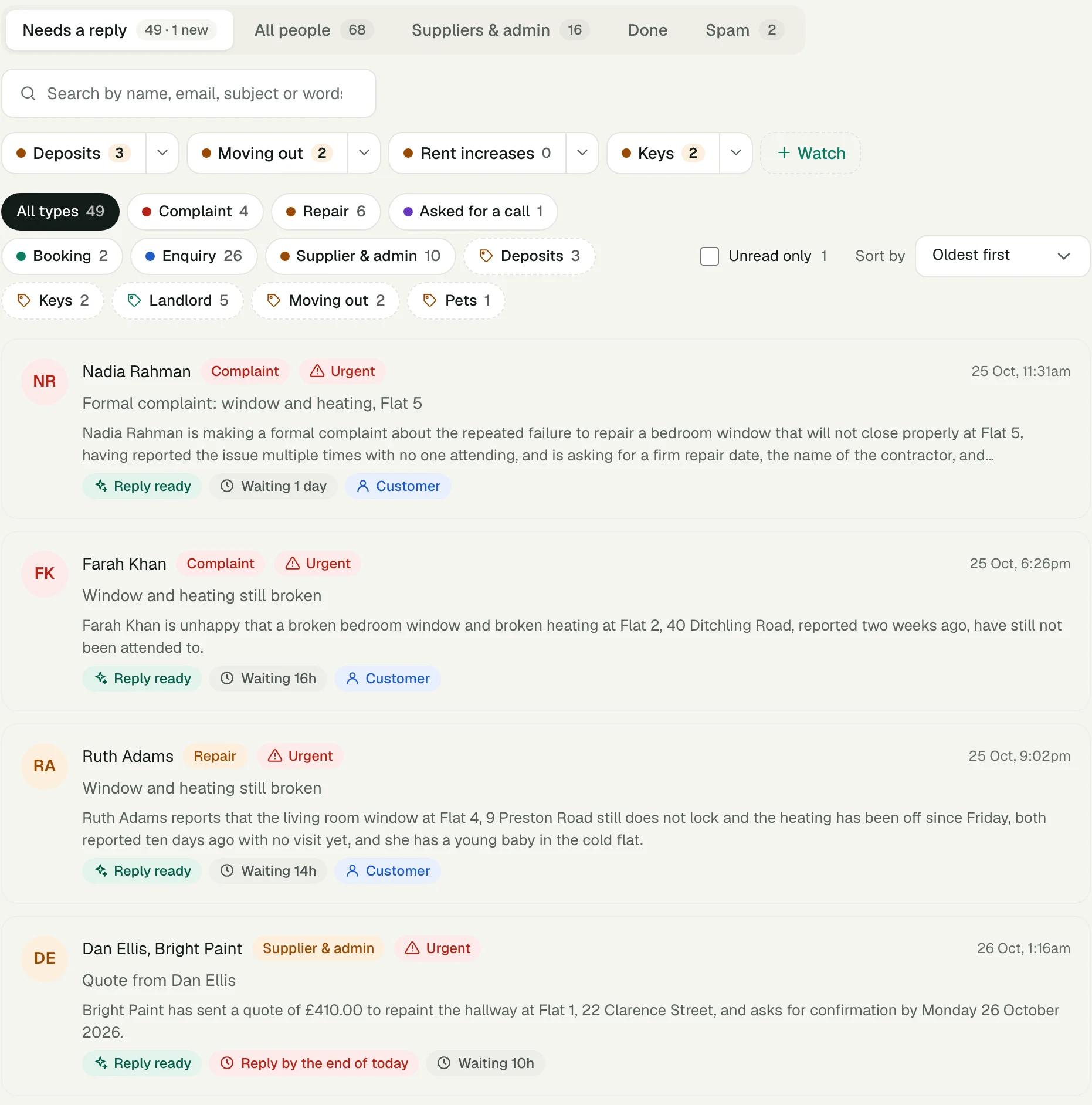
Forwarded emails appear under Inbox, then Email, with the ones that need you on the Needs a reply tab. Chips filter the list by type and by your own labels. The Labels card on Settings, then Email opens Email labels, where you rename the types and add labels of your own.
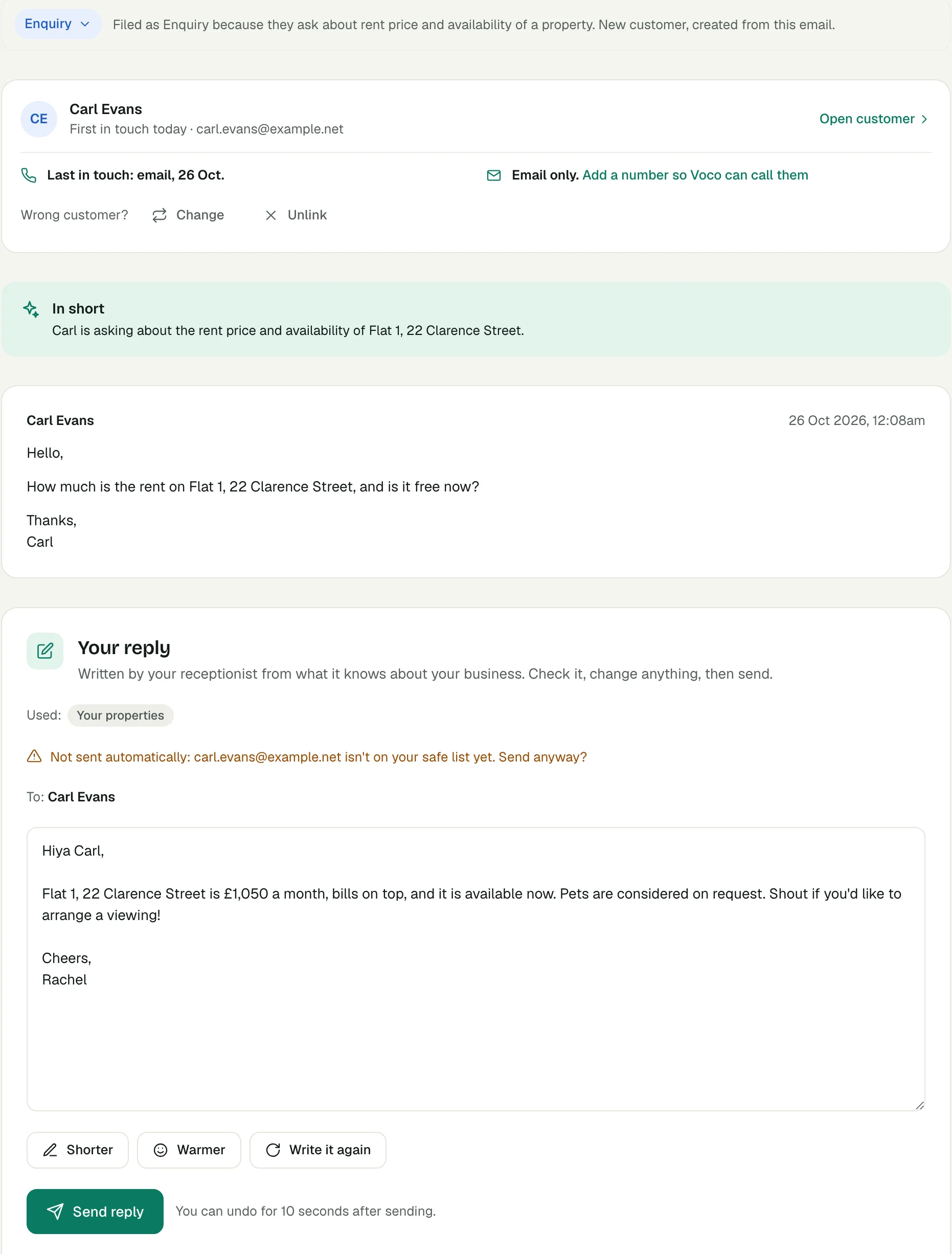
Each email opens with In short, a one-line summary, then the customer and the reply Voco wrote. Read it, change anything and press Send reply. You can undo for 10 seconds after sending. If you have connected your WhatsApp to Voco and replies wait as drafts, each draft also comes to you there, and replying SEND sends it.
Attachments such as photos, PDFs, audio, video and text files open in a preview in your browser, and other files download. When an email confirms an appointment or carries a calendar invitation, Voco reads the date and offers Add to diary. Nothing is added until you tap. When a customer asks for a call, Voco offers to ring them, starting from the email so they do not have to explain again.

How do I get the most from Voco email?
Forward the mailbox customers write to. Voco works best on an enquiries address and on the inbox your Rightmove, Zoopla, OpenRent, OnTheMarket or Bark leads land in. Each enquirer then stays in one conversation, and Bark leads are answered on Bark.
Point your website contact form at Voco. Add your Voco address to the form's notification email, so each submission is sorted and answered like any other enquiry. Tick Your website form on Voco's safe list if you want those replies to go on their own.
BCC Voco on replies from your own mailbox. Voco then knows the customer has been answered, does not draft a second reply and learns from what you wrote.
Teach Voco how you reply, and fill each gap once. Paste a few past replies on How you reply. When a draft leaves a part in [brackets] because Voco does not know a fact, Voco offers to save your answer, and every future reply and call uses it.
Start with drafts, then choose who Voco answers on its own. Send replies yourself for a while. Once you have sent 20 replies of one kind in a row without changing a word, Voco offers to send that kind on its own. Choose the people in Who can Voco answer on its own? and the kinds in the Rep